ATLAS Documentation
Atlas keeps your travels on one map: the places you want to see, the trips you plan and take, and the countries you've been to.
Getting started
What Atlas is
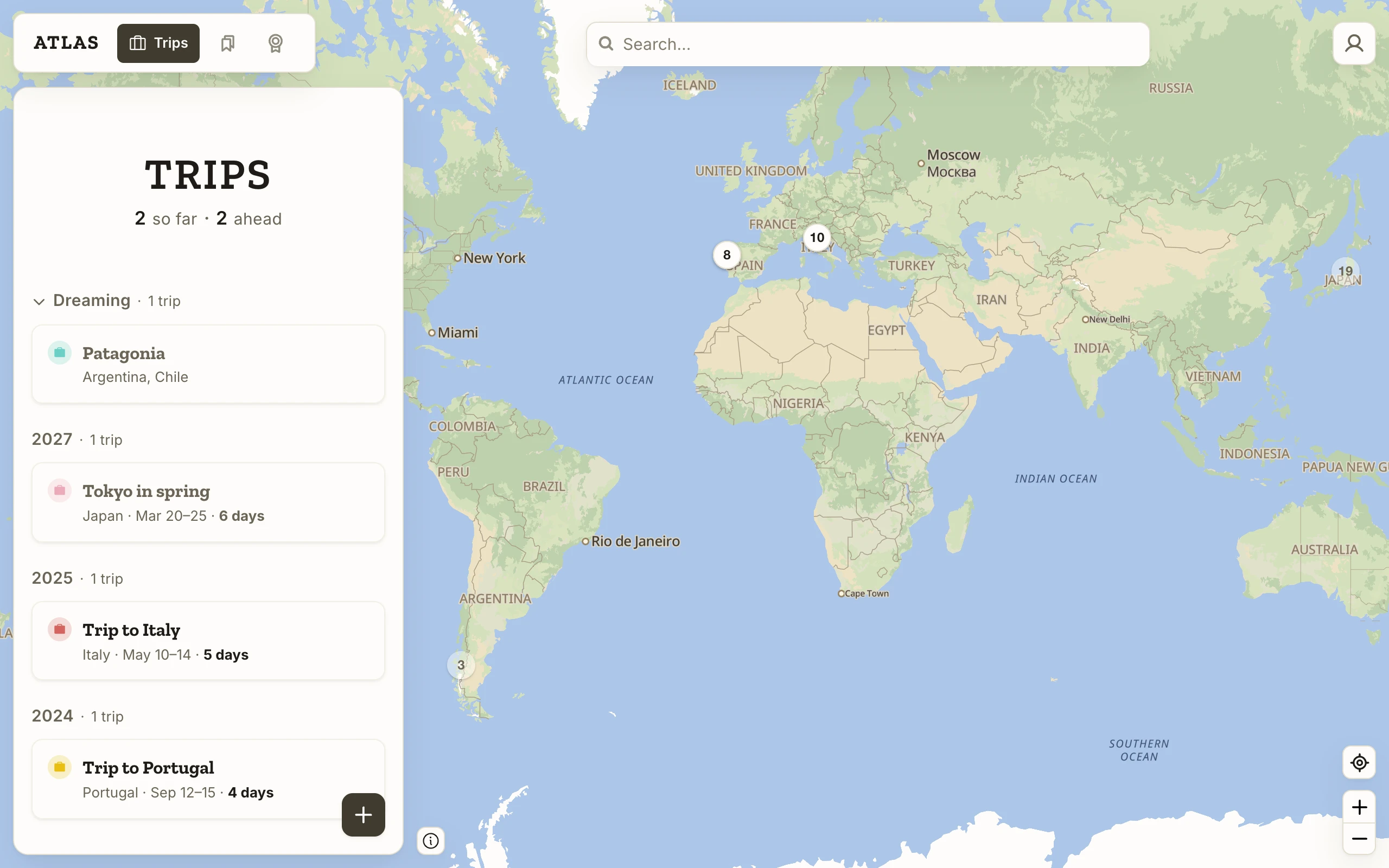
The map is always there. Three screens open beside it, and each looks at the same places from a different side.
- Trips holds your trips, past and future, each with the places you plan to see or have seen.
- Places is everything you've saved, on a trip or not. Filter it down to the restaurants in one city or the museums you've already been to.
- Passport counts the countries you've visited, continent by continent.
The three share one set of places. Save a cafe and it is on the map and in Places. Add it to a trip and it is on that trip's itinerary. Mark it Visited and its country counts in Passport.
Atlas doesn't assume one way of travelling. If you plan ahead, a trip gives you dates, days and an order. If you collect places as you hear of them, save them and never make a trip at all. A place saved months ago is there when a trip finally happens, and a trip you're only thinking about waits under Dreaming without a date.
Signing in
Atlas signs you in with an email. There is no password.
Enter your email and press Continue. The email carries a link and a 6-digit code, and either one lets you in: the link signs in the browser that opens it, the code signs in the page that asked. Use the link on the same device, and the code when the email is on your phone and Atlas is open on your laptop. Both work once, for an hour.
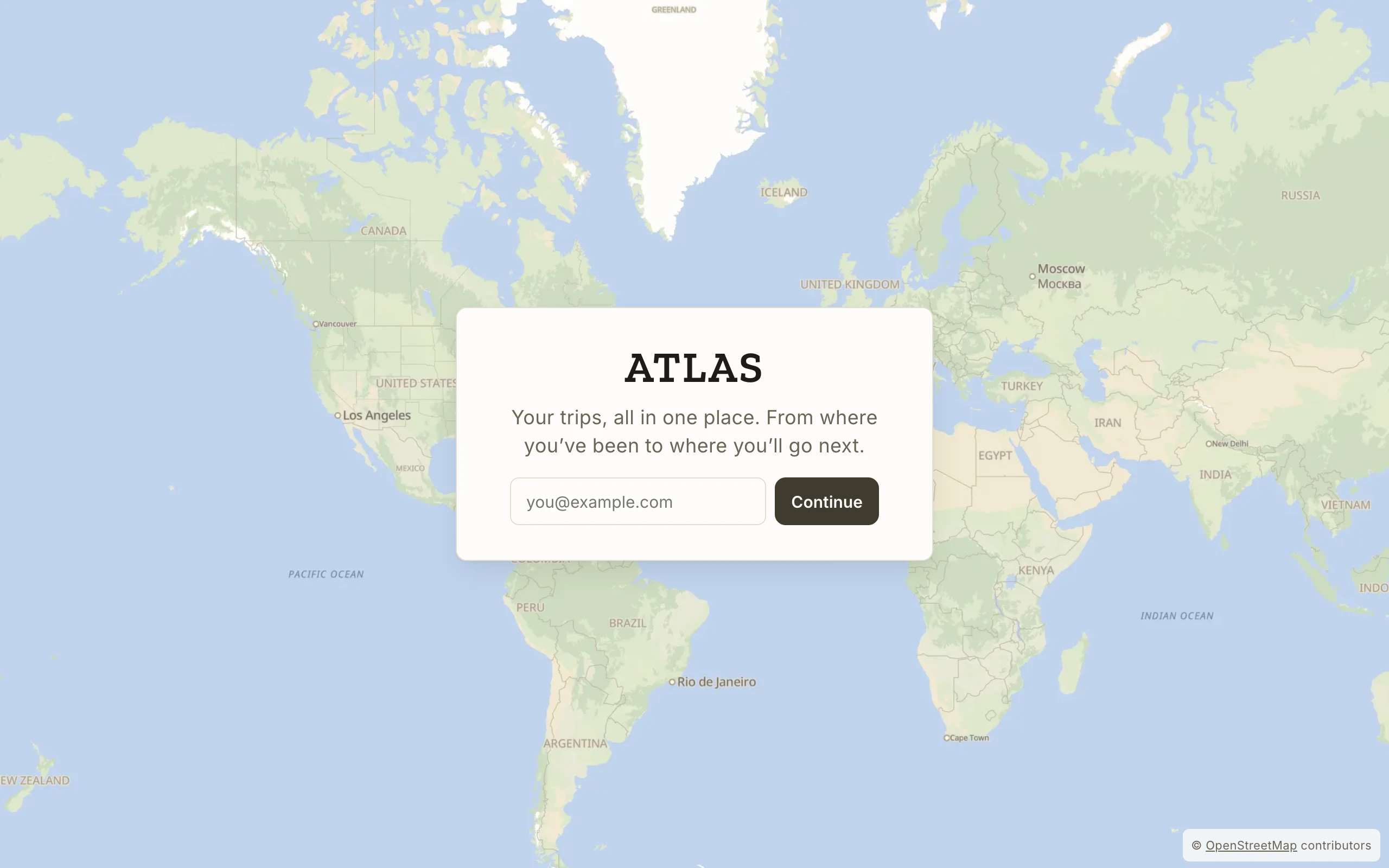
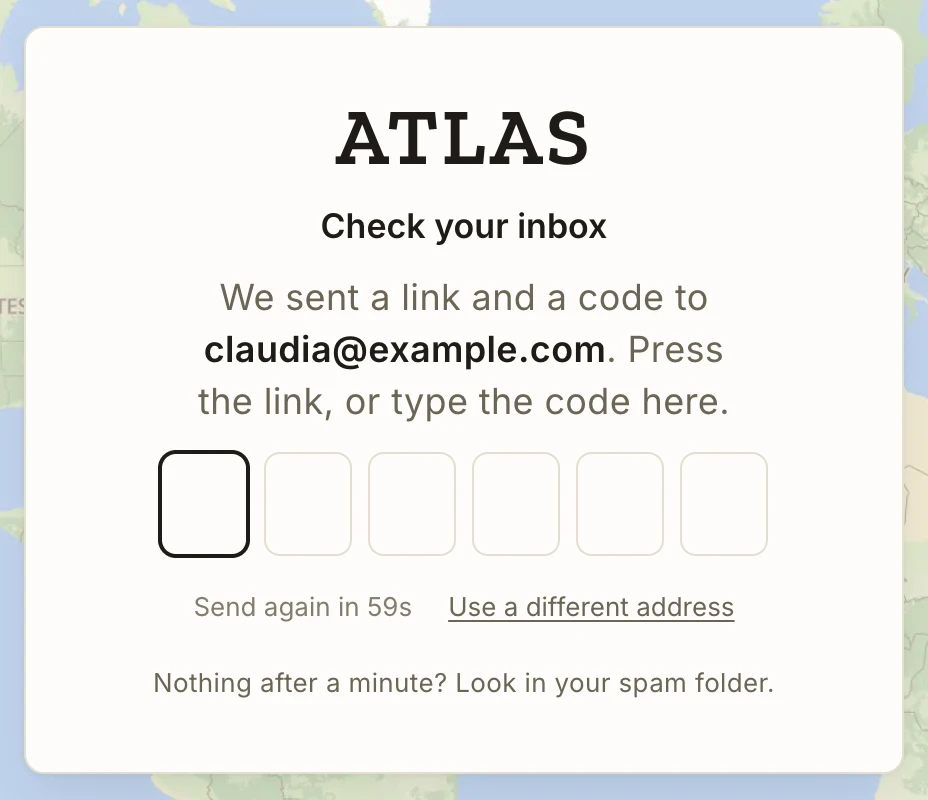
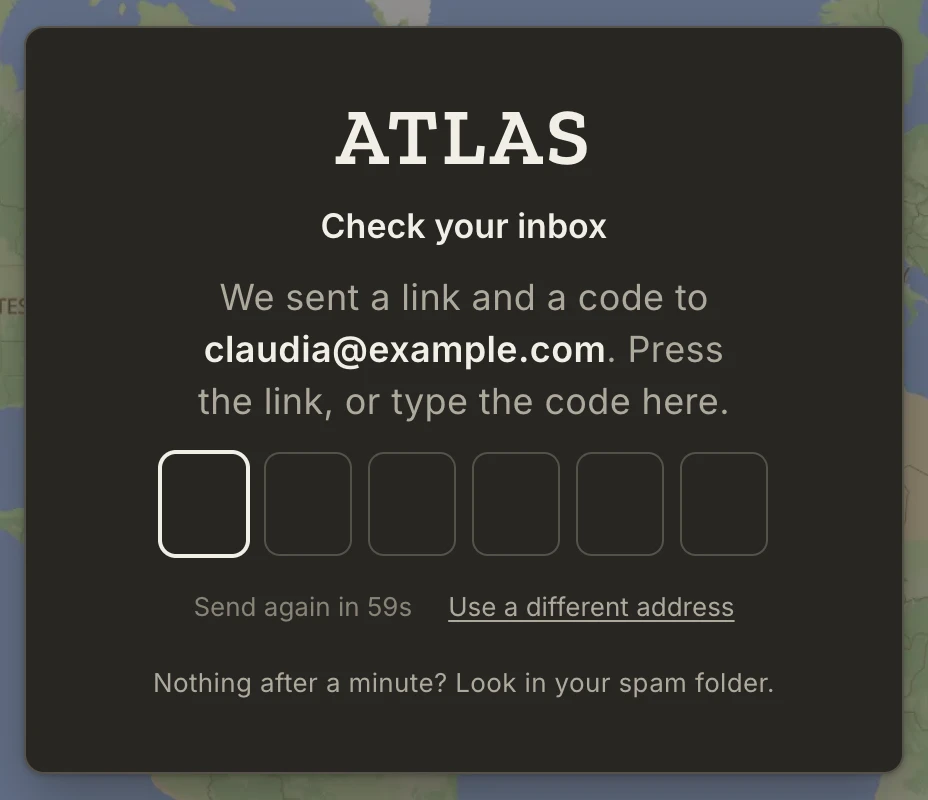
Nothing after a minute? Check your spam folder, then press Send again. The link returns you to the page you asked from, so a bookmark to a trip still lands on that trip.
To sign out, open the account menu at the top right. Signing out clears the copy of your data kept on that device; nothing is removed from your account.
Finding your way around
Trips, Places and Passport, at the top left, switch the panel between the three screens. The Atlas wordmark takes you home.
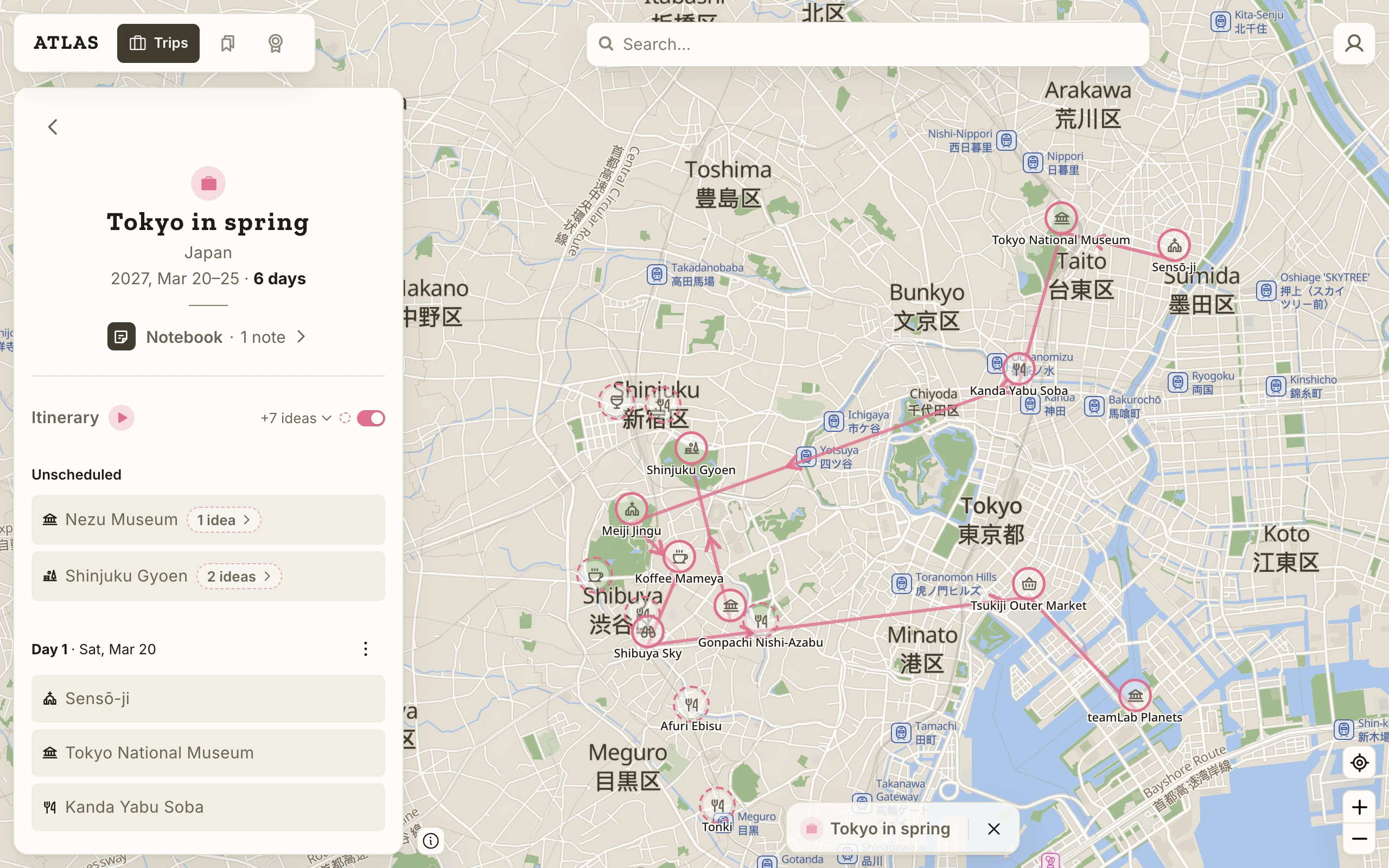
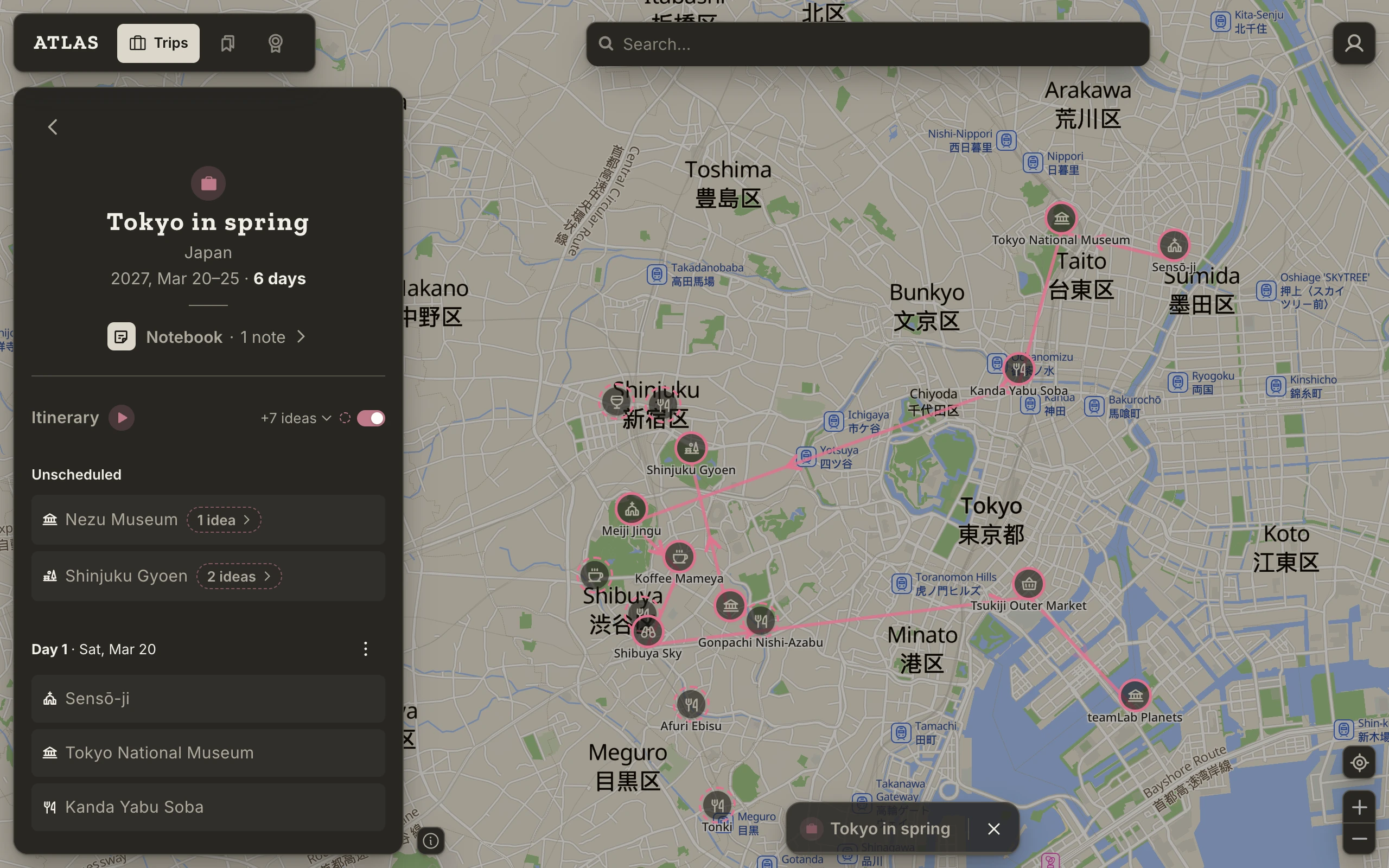
A trip or a saved view opens as a page over its list, with an arrow at the top left to go back. A place opens when you press its name anywhere: in a list, on an itinerary, or on the bar over its pin. On a wide window it opens beside the trip or list it belongs to; on a narrower one, over it. The browser's Back and Forward work as you'd expect, and Escape closes whatever is on top.
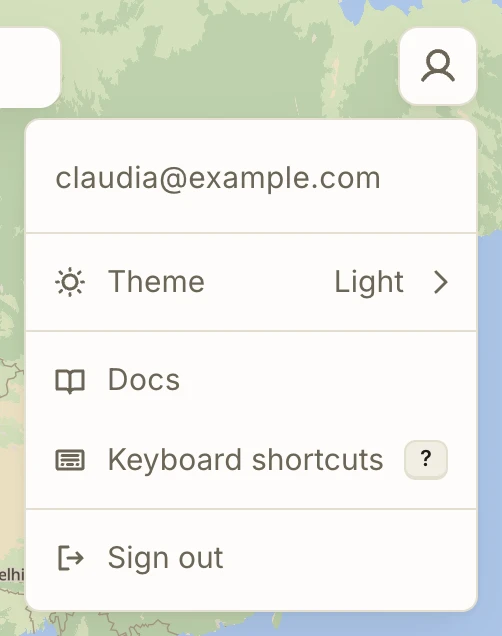
The search box at the top finds places in the world and in your own Atlas (see Search). The button at the top right is the account menu: theme, these docs, keyboard shortcuts and sign out. Most of this is also on the keyboard: see Keyboard shortcuts.
On a phone the same parts are arranged for one hand: the map fills the screen, the panel is a sheet that slides up over it, and the nav sits at the bottom. See On your phone.
Your first places and trip
Five steps take you through most of Atlas.
- Save a place. Search for somewhere you'd like to go and pick it. A small bar opens over its pin, reading Not saved. Press that and choose Want to visit. The place now has a pin and is in Places.
- Mark somewhere you've been. Search for a place you know and choose Visited instead.
- Make a trip. Open Trips, press the +, and type a name. Add dates if you know them; a trip without any waits under Dreaming.
- Add the place to the trip. On the place's bar, press the suitcase and pick your trip. The place lands in the trip's Unscheduled list, ready to be given a day.
- Look at your Passport. The country of the place you marked Visited is already counted.
Places
Saving a place
Find a place by typing its name in search, or by pressing its name or symbol on the map. Either way a pin appears with a small bar over it: the place's name, the words Not saved, and a suitcase.
Looking saves nothing. Open the place's page, read about it, and press the map or Escape to let it go.
A place becomes yours the moment you do something with it: give it a status (Want to visit or Visited), add it to a trip, or change something on its page, such as its name, its Type, a label or a note. A change on an unsaved place saves it as Want to visit.
Atlas recognises the places you already have. Search for one or press it on the map and it opens your saved place, with its status, trips and notes, rather than a second copy.
Want to visit and Visited
Every saved place is somewhere you want to go, somewhere you've been, or both. The two marks sit at the top of a place's page and in the status menu of its bar on the map. Each is switched on its own, so a place can carry both: you've been, and you'd go back. Once a place is Visited, the other mark reads Want to revisit. It is the same mark in different words, and the Want to visit filter finds these places too.
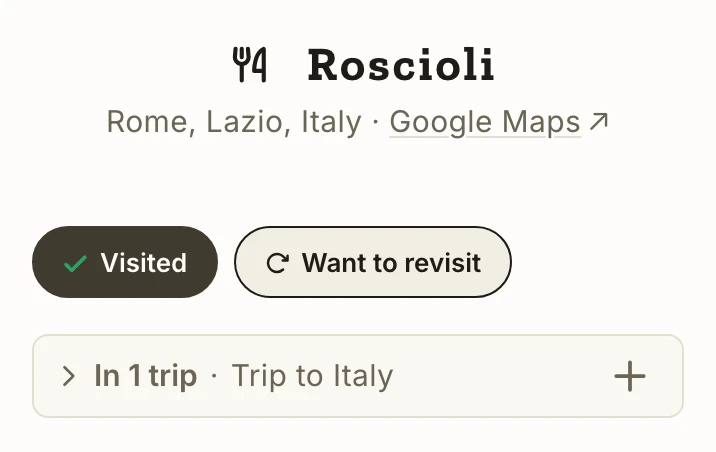
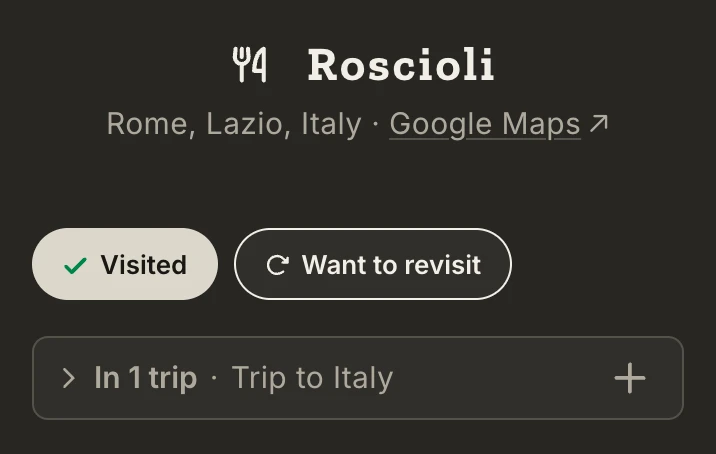
Most of the time your trips set these for you. Adding a place to a trip that hasn't happened yet marks it Want to visit. Once a trip is over, every place on it becomes Visited, Unscheduled included, and loses Want to visit. On a trip underway, places become Visited as you check in.
A mark that a trip is holding can't be switched off on its own; Atlas says so. Take the place off the trip first, from the list of trips under the two marks or on the trip's itinerary.
Renaming a place and changing its Type
A place arrives with the name and Type the map gives it. Both are yours to change.
Press the name on a place's page to rename it. Your name is used everywhere the place appears, and search still finds it by the original. Clear the field to go back.
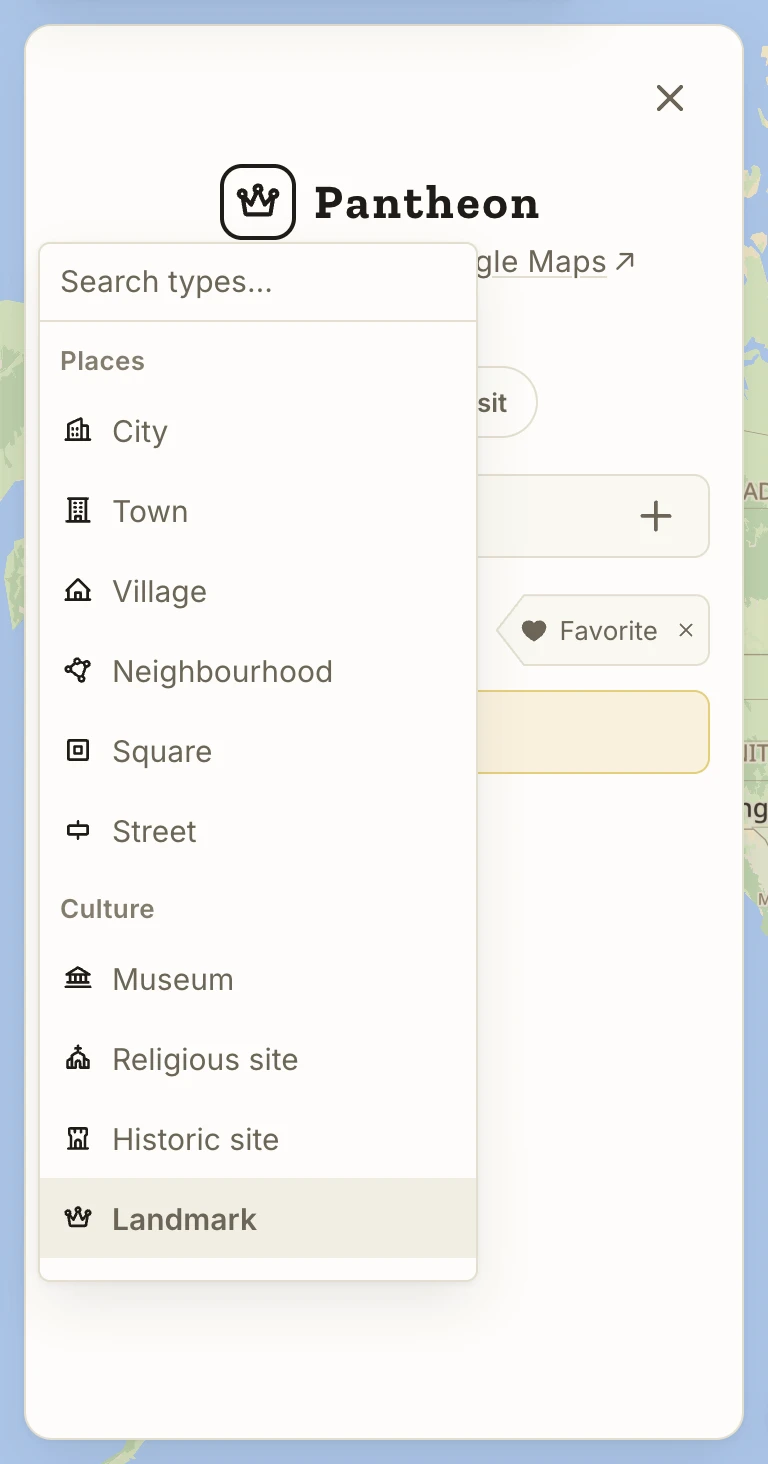
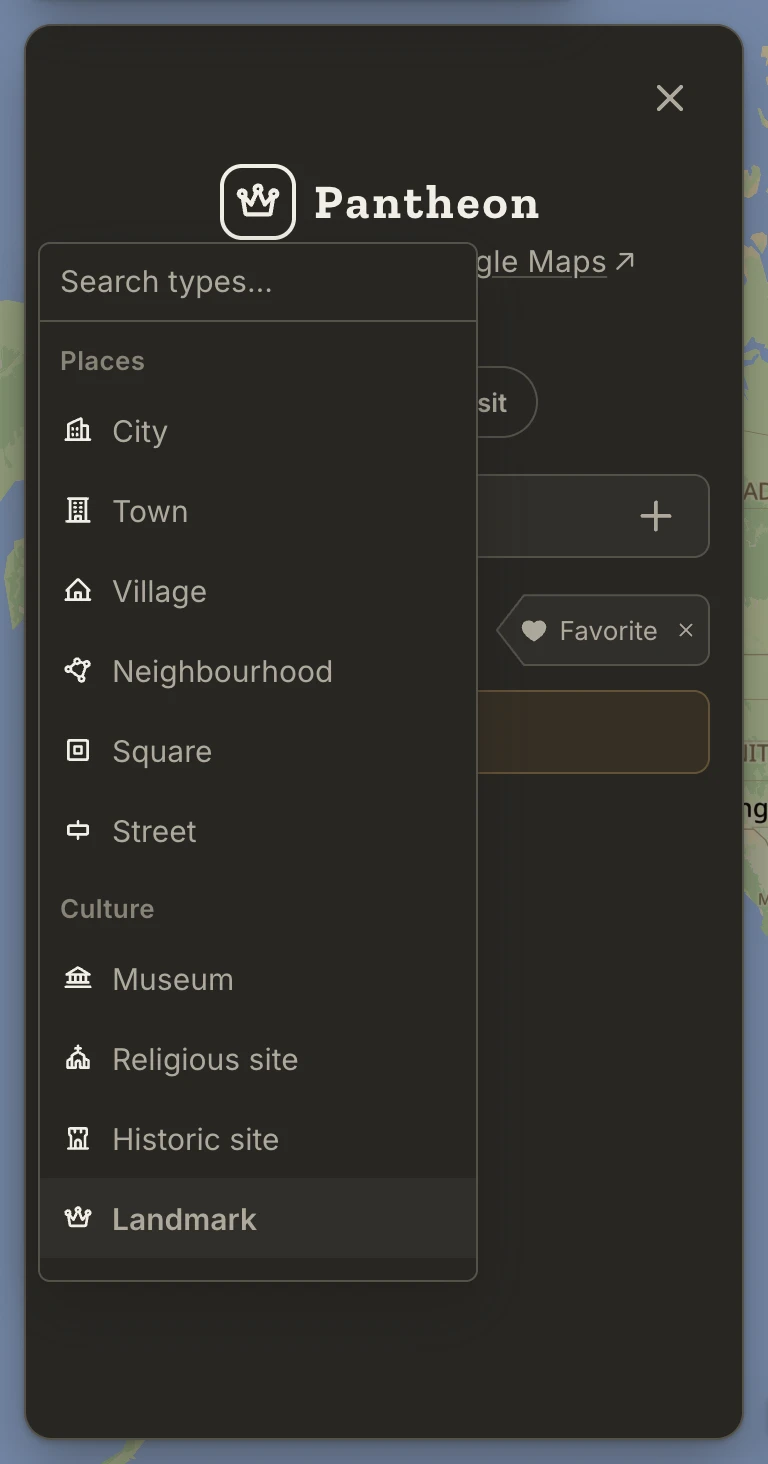
The Type is the icon beside the name: a fork and knife for a restaurant, a crown for a landmark. Press it to pick another from the list, grouped as Places, Culture, Nature, Businesses, Getting around and Other, or type in Search types…. The Type decides the place's icon on the map and what the Type filter finds. Reset to the original is at the foot of the list once you've changed it.
Labels
A label is a tag of your own: "Hidden gem", "Recommended", "With kids". Where a place is, what it is and whether you've been are already known; a label is for what only you know. A place can have any number, and Atlas never adds one for you.
On a place's page press Add a label, then tick a label or type a new name and press Enter. Each tick saves at once. Favorite is there from the start and always comes first.
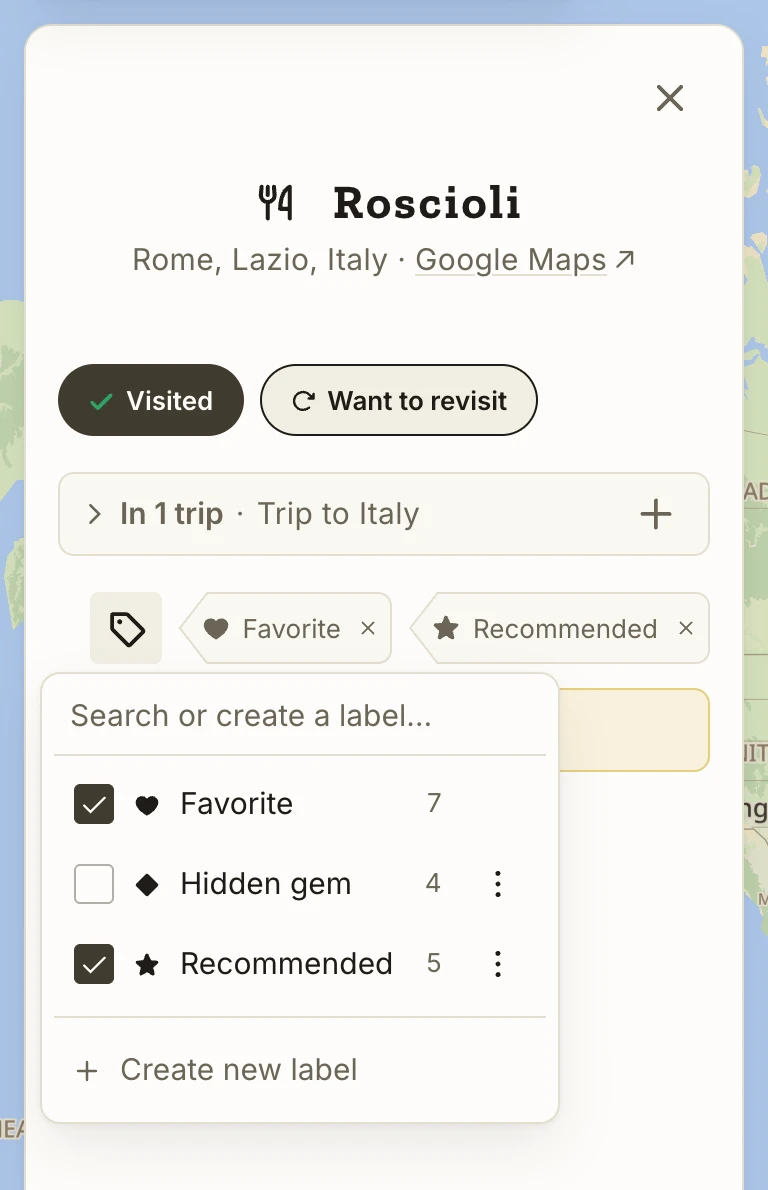
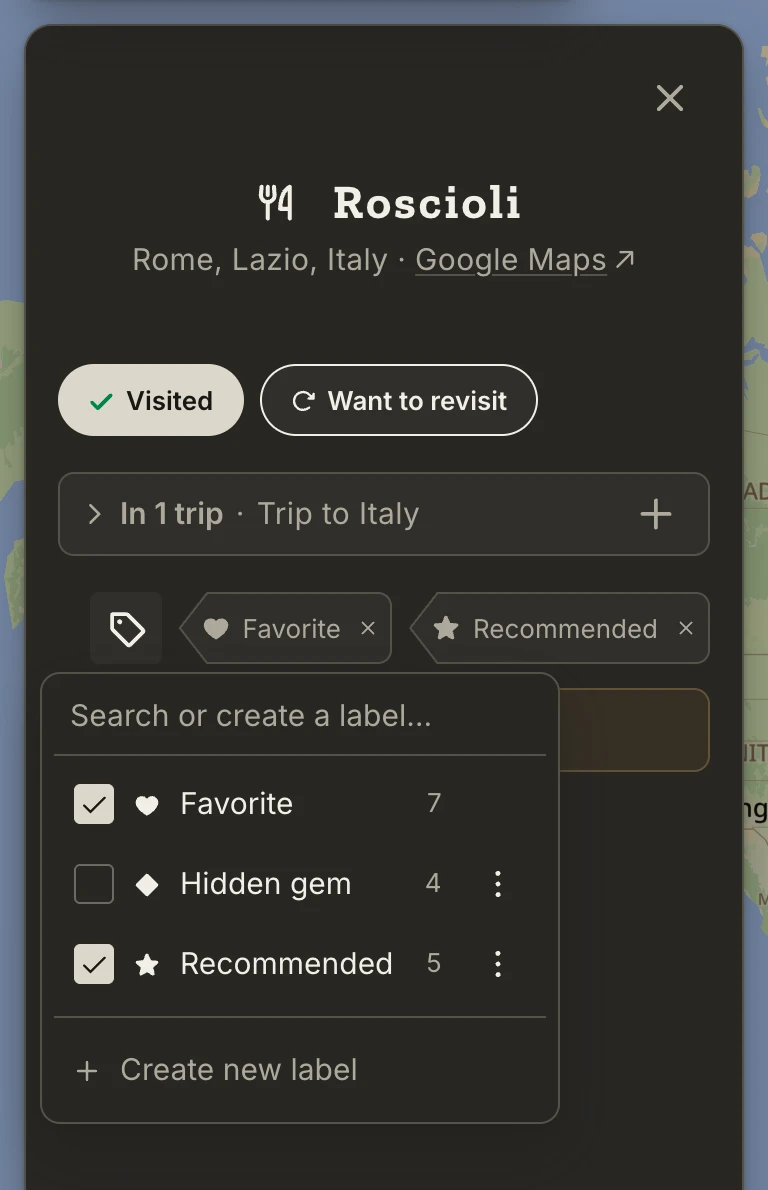
Press a label's name on a place to see every place with it in Places. Press the × on a label to take it off the place; the label stays for your other places. A label's ⋮ in the list renames it, changes its icon or deletes it. A label on no place for 30 days is removed on its own.
Notes
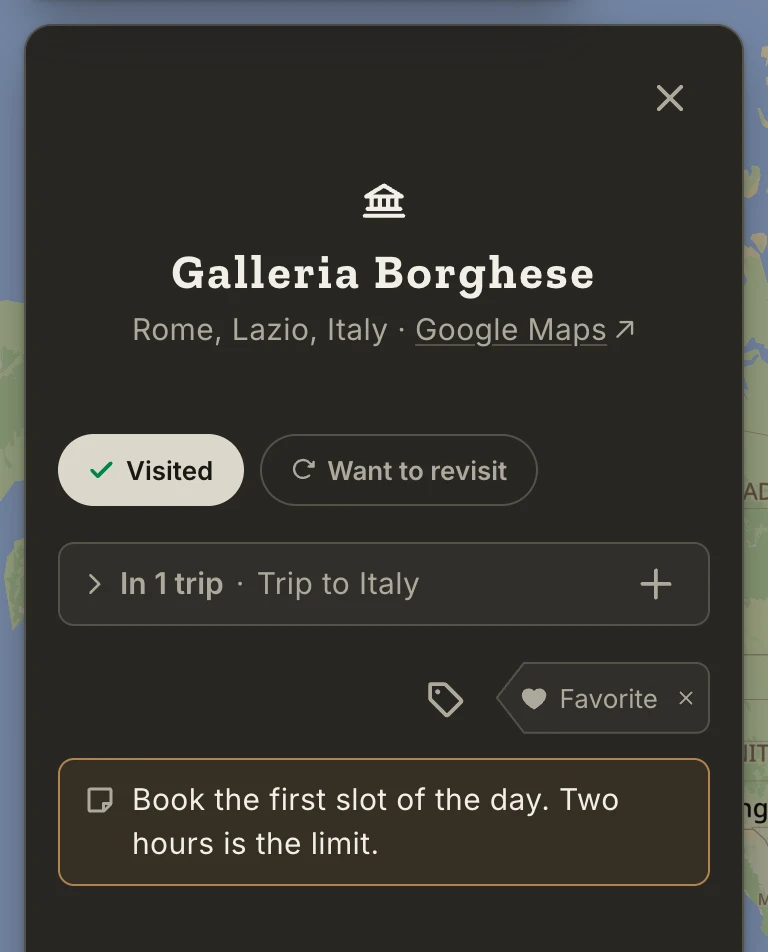
Every place has room for one note: what to order, who recommended it, which entrance to use. Type in Add a note… under the labels; it saves when you leave the field. Start a line with "- " for a bullet, and a web address becomes a link.
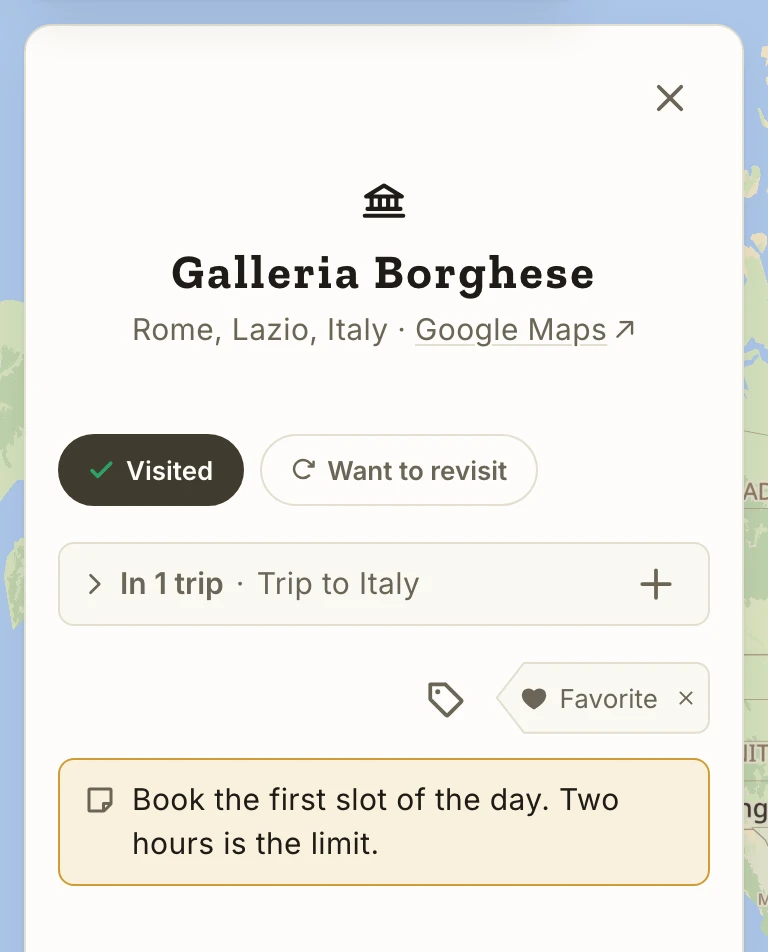
A trip's Notebook gathers the notes of the places on that trip, so you can read and edit them together. See The Notebook.
About a place
When a place has a Wikipedia article, its page ends with About: a paragraph or two on what the place is and why it matters, with a link to the article. It's there whether or not you've saved the place, and it's the same for everyone; your own words go in the note.
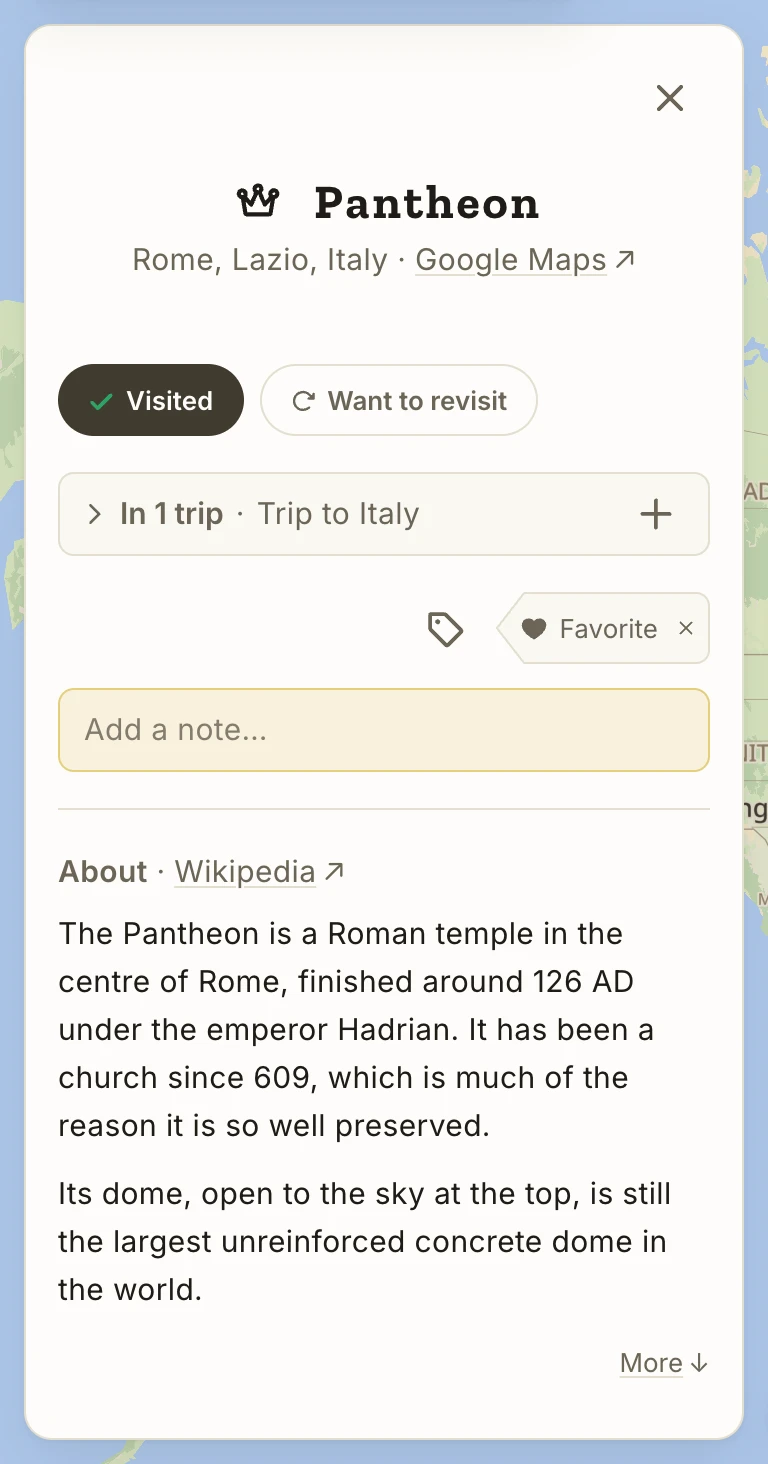
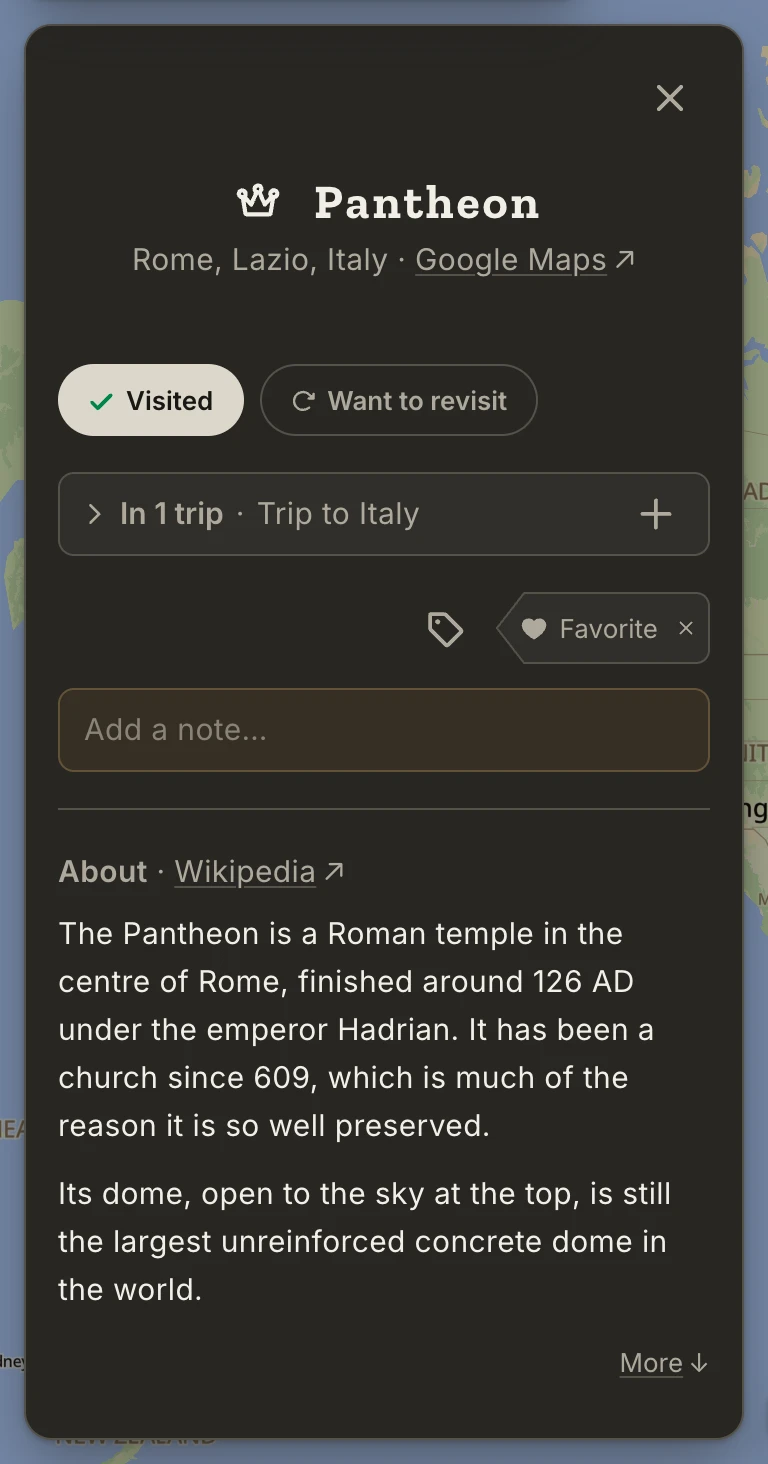
More opens a longer guide from the same article, in up to four parts: History, Its role today, What to see, Curiosities. Places without an article have no About.
Adding a place that isn't on the map
Not everything worth saving is on the map: a friend's flat, a picnic spot, the start of a trail. You know where it is, so tell Atlas directly.
Zoom in, right-click the spot (touch and hold on a phone) and choose Add missing place. A pin lands on the exact point, named by its coordinates until you type a name. Naming it saves it as Want to visit, and from then on it's a place like any other, with a Type (it starts as Other), labels, notes and trips.
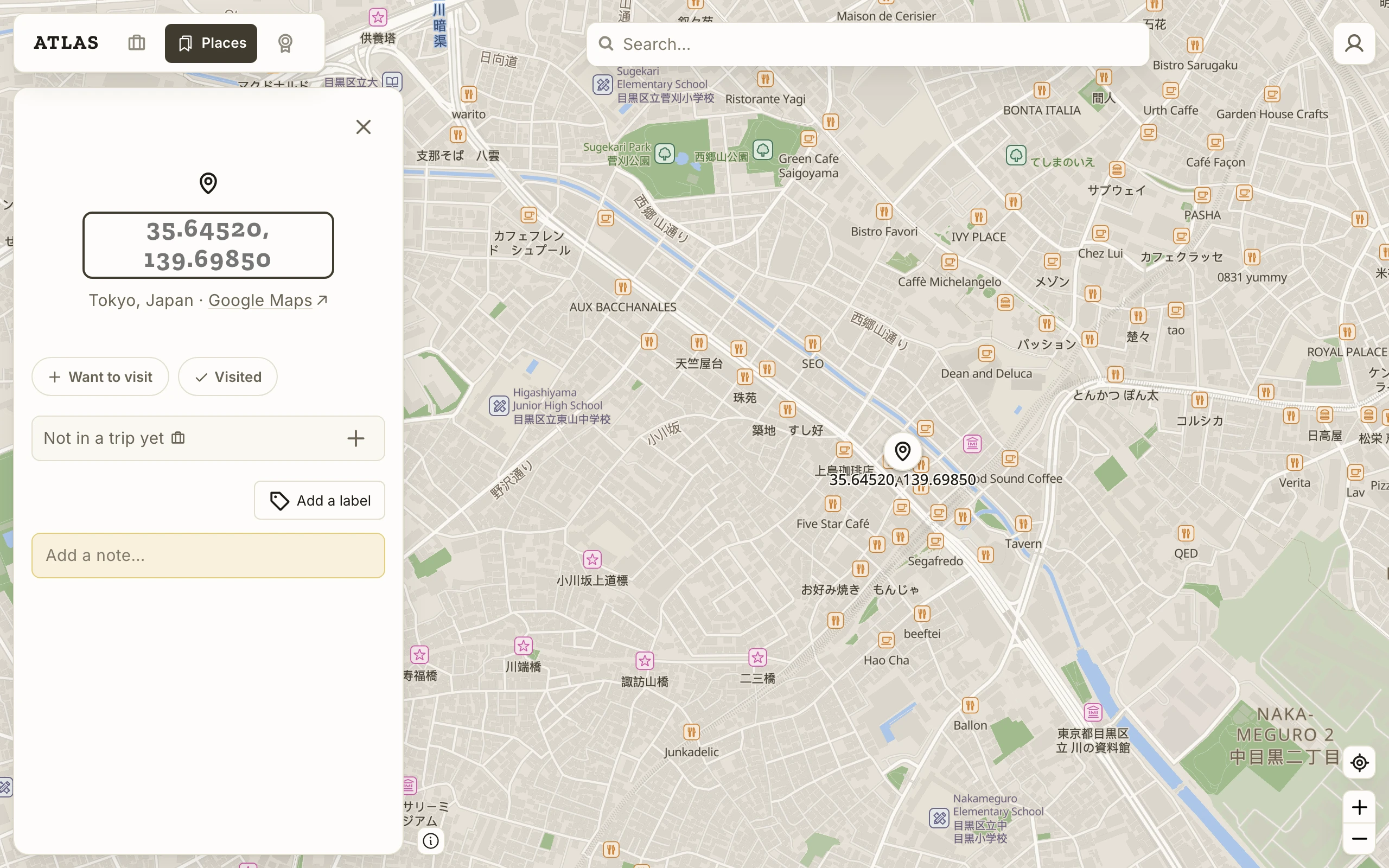
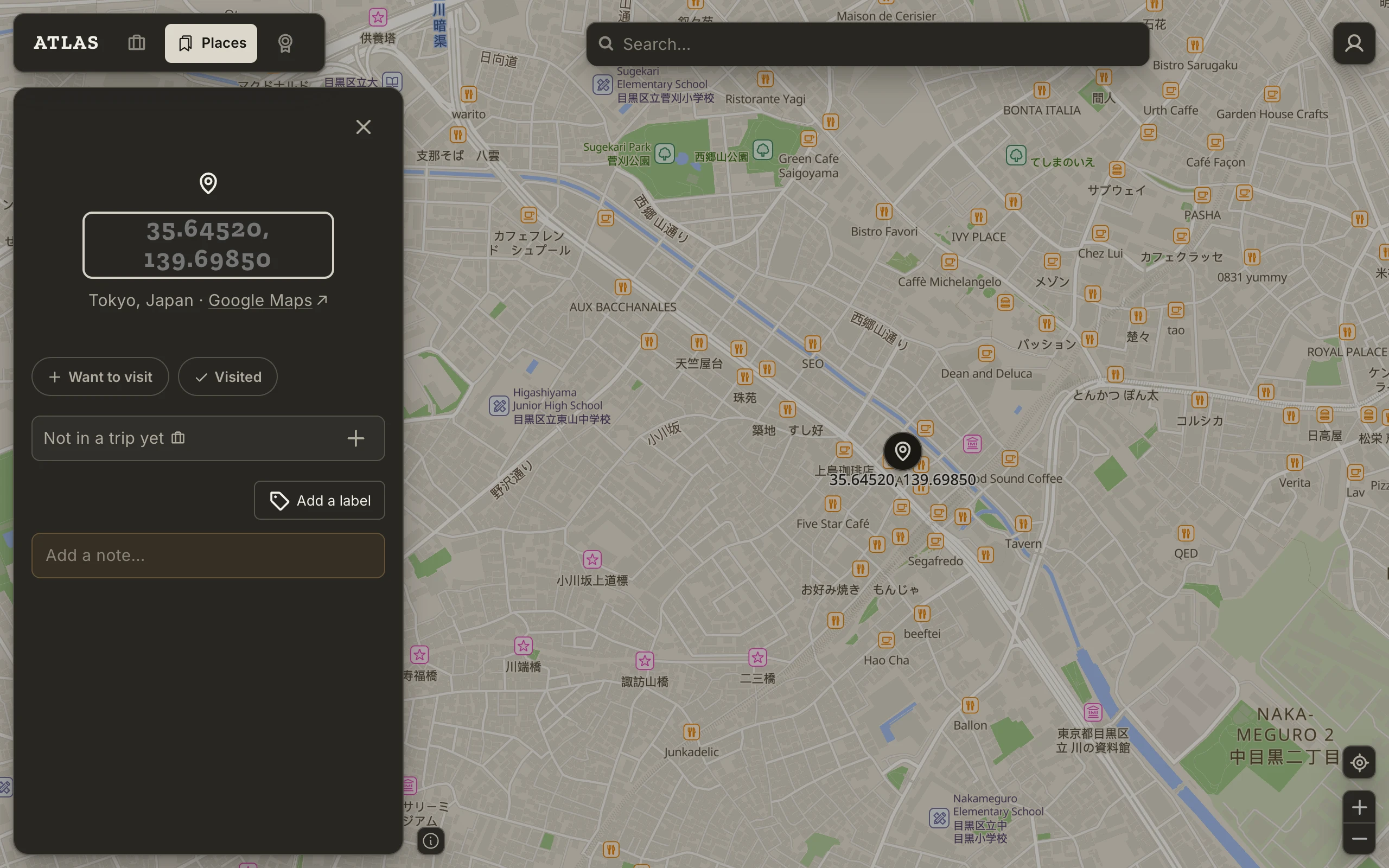
Coordinates from another map or a message work too: paste them into search and pick the Exact coordinates row.
Filtering your places
Places answers questions about everything you've saved. Five filters sit under its title:
- Status: Visited or Want to visit.
- Location: the countries and cities your places are in. A country includes its cities.
- Type: Restaurant, Museum, Park and so on.
- Labels: your own.
- Trip: one of your trips, Any trip, or Not in a trip.
Ticks within one filter add up (Museum and Park shows both); different filters narrow each other (museums or parks, in Italy, that you've visited). Each option shows how many places it would give you, given the other filters. Each choice becomes a chip; press a chip to remove it.
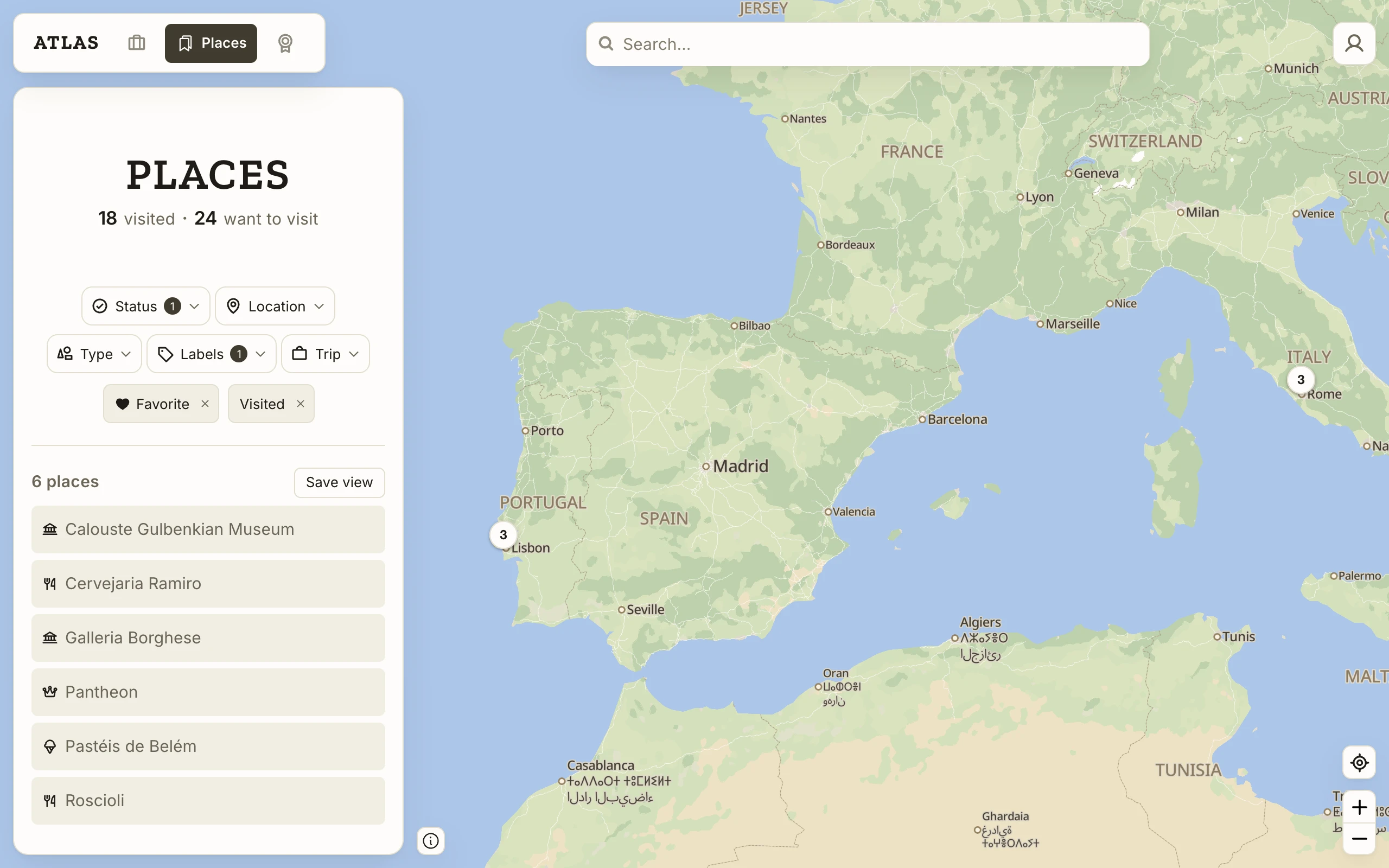
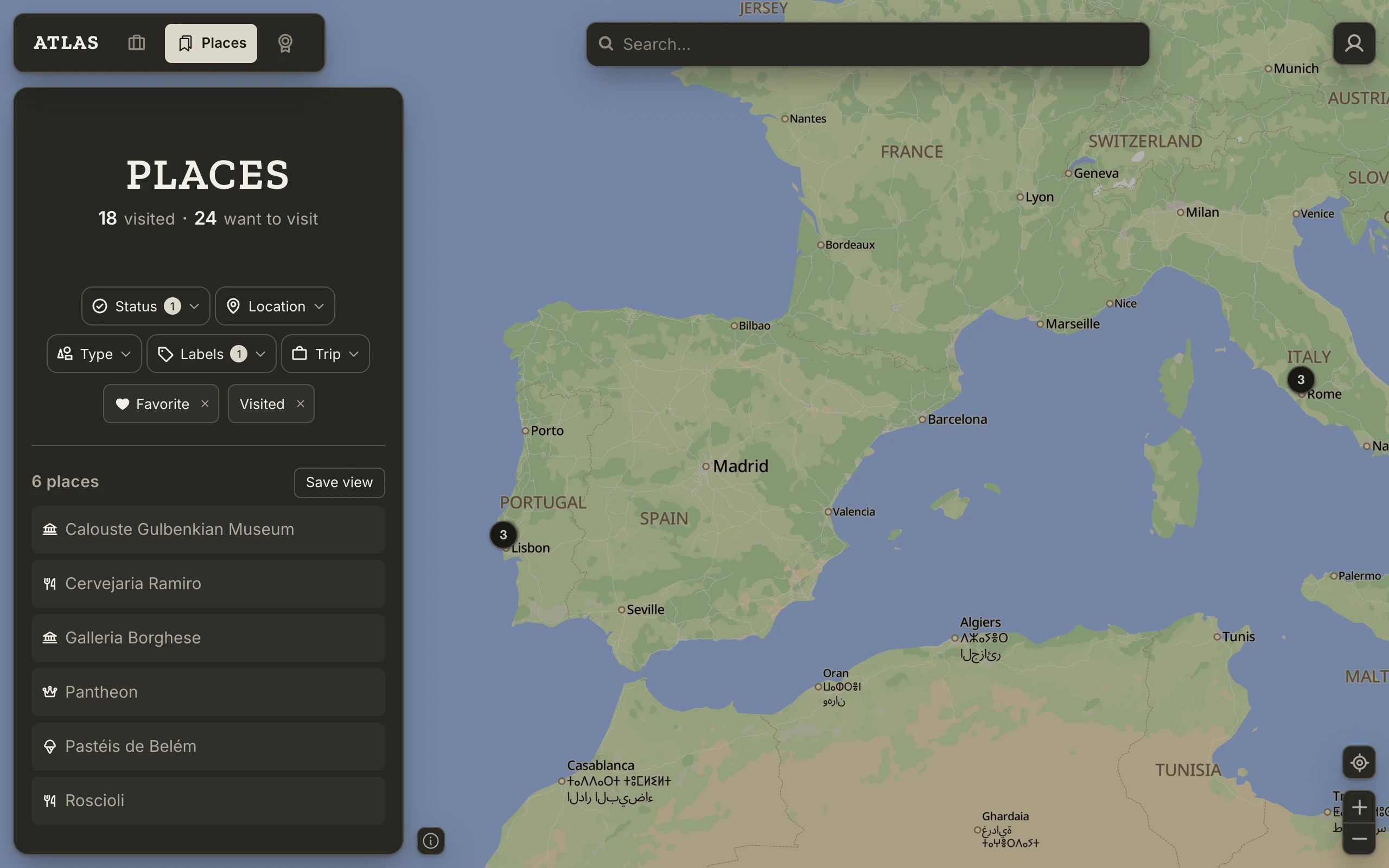
The list and the map show the same thing: the map frames the matching places and fades the rest. With no filter picked, Places shows your saved views, or every place while you have none.
The search box reads the same filters in words: type "favorite restaurants in italy" and it offers a row that opens Places with those filters picked.
Saved views
A saved view keeps a set of filters: restaurants in Tokyo you still want to visit, museums you've been to, everything with a friend's label.
A view is a set of rules, not a list. It shows whatever matches right now, so a restaurant you save in Tokyo next week is already in it, and nothing goes stale. There is no "add to view" button. To put a place in a view, give it what the view looks for: the label, the status, the trip.
Create a view. Pick filters on Places and press Save view beside the count. The view is saved at once and opens with a name made from its filters, such as "Restaurants to visit in Tokyo". Type over it if you'd like your own.
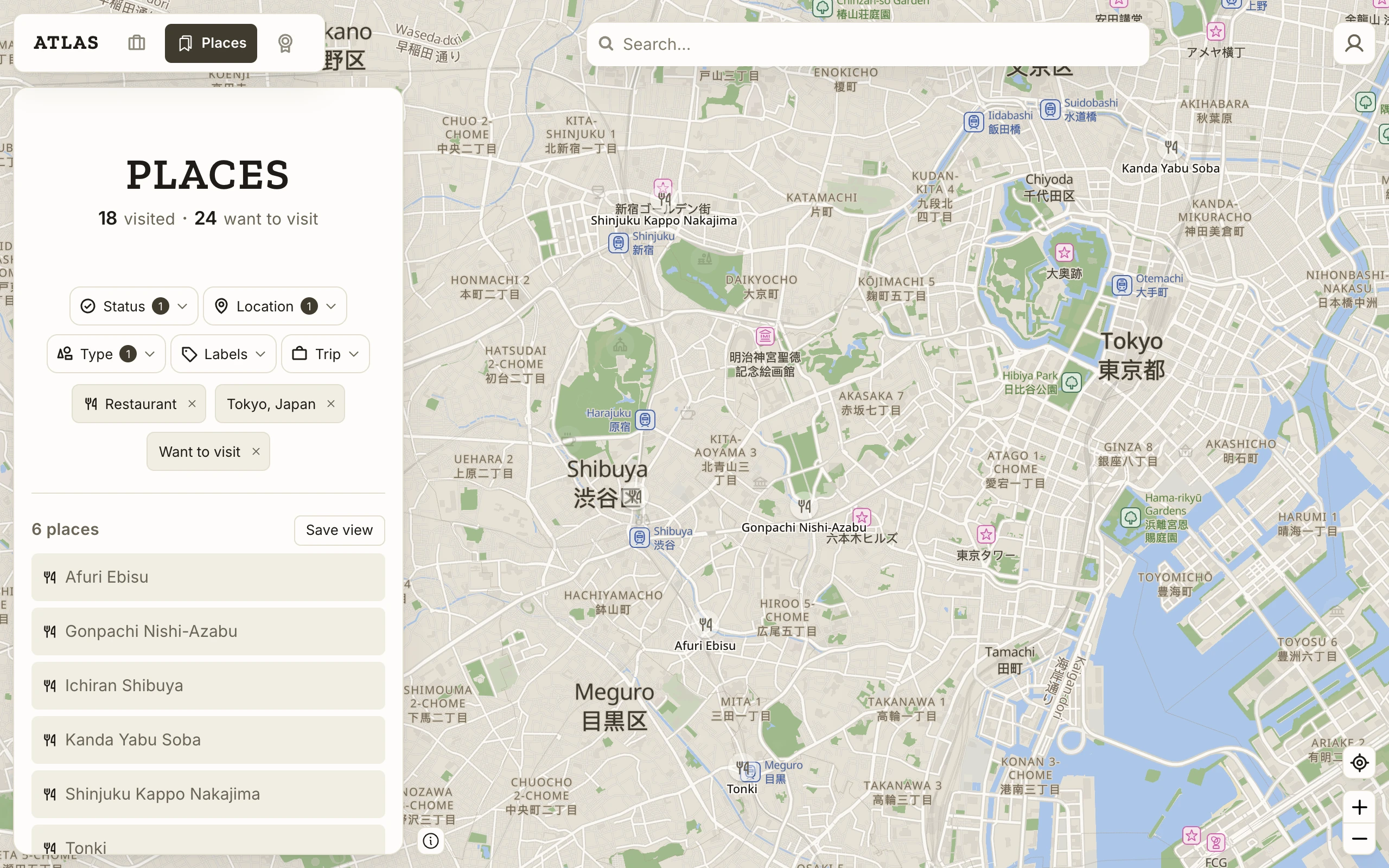
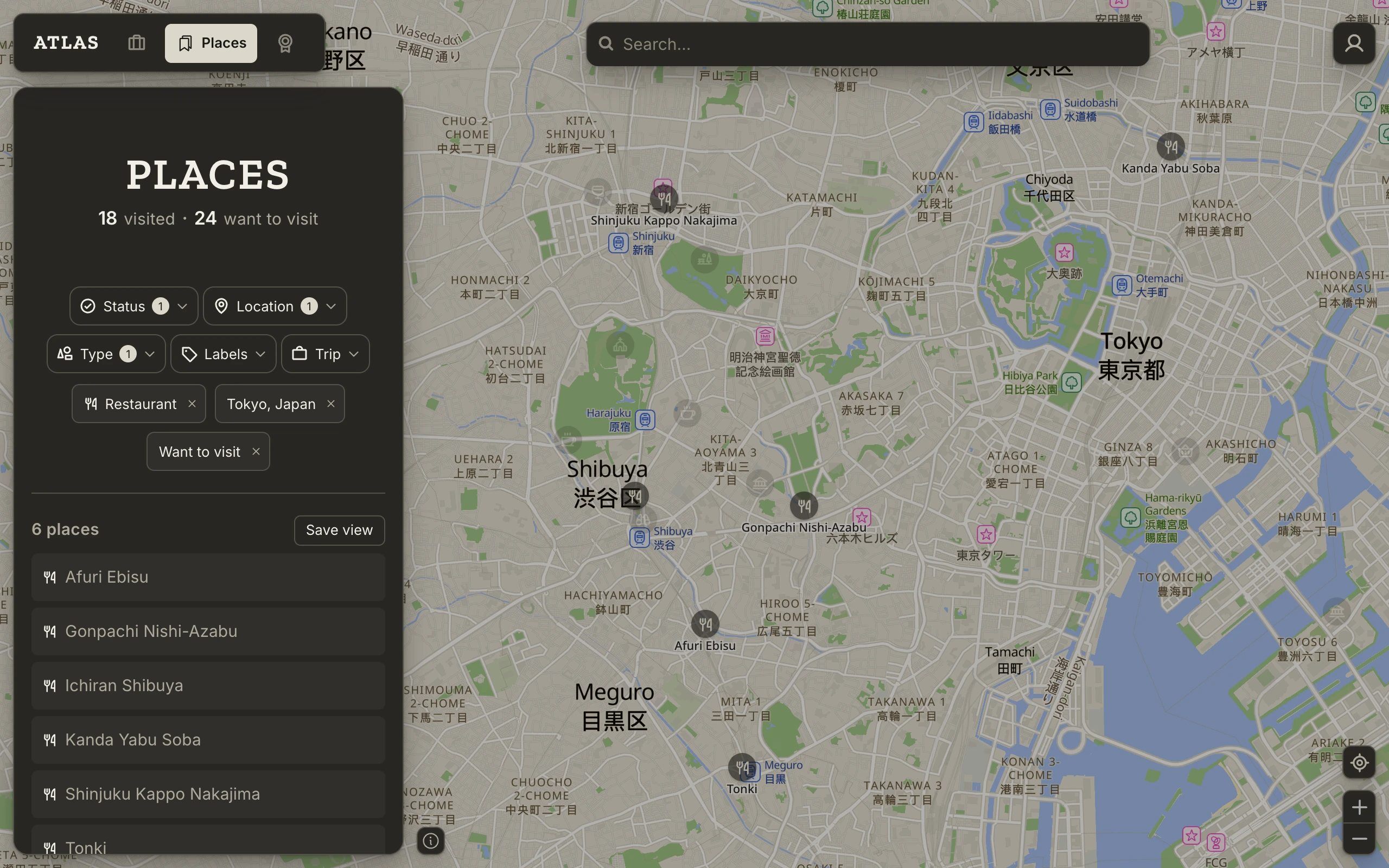
Working with a view. Open a view from its card on Places. Change its filters there and they save as you go; a view keeps at least one. Press the name to rename it, and clear it to get the automatic name back. The bookmark above the name sets its colour. Delete is in the ⋮ menu, and your places aren't affected.
Each view has its own address, and search finds views by name.
Removing a place
There's no remove button. A place is yours while it has a status or is on a trip, and it leaves when it has neither: switch off its last mark and, once you close it, it's gone from your places and from the map. If the place is on a trip, take it off the trip first. If you had renamed it, labelled it or written a note, Atlas asks before those go with it.
Trips
Creating a trip
A trip is a name, a date if you have one, and the places you plan to see or have seen. None of it is required up front.
Trips lists everything on one timeline: Dreaming at the top for trips with no date, then a heading for each year, newest first. The figures under the title count what's behind you and what's ahead.
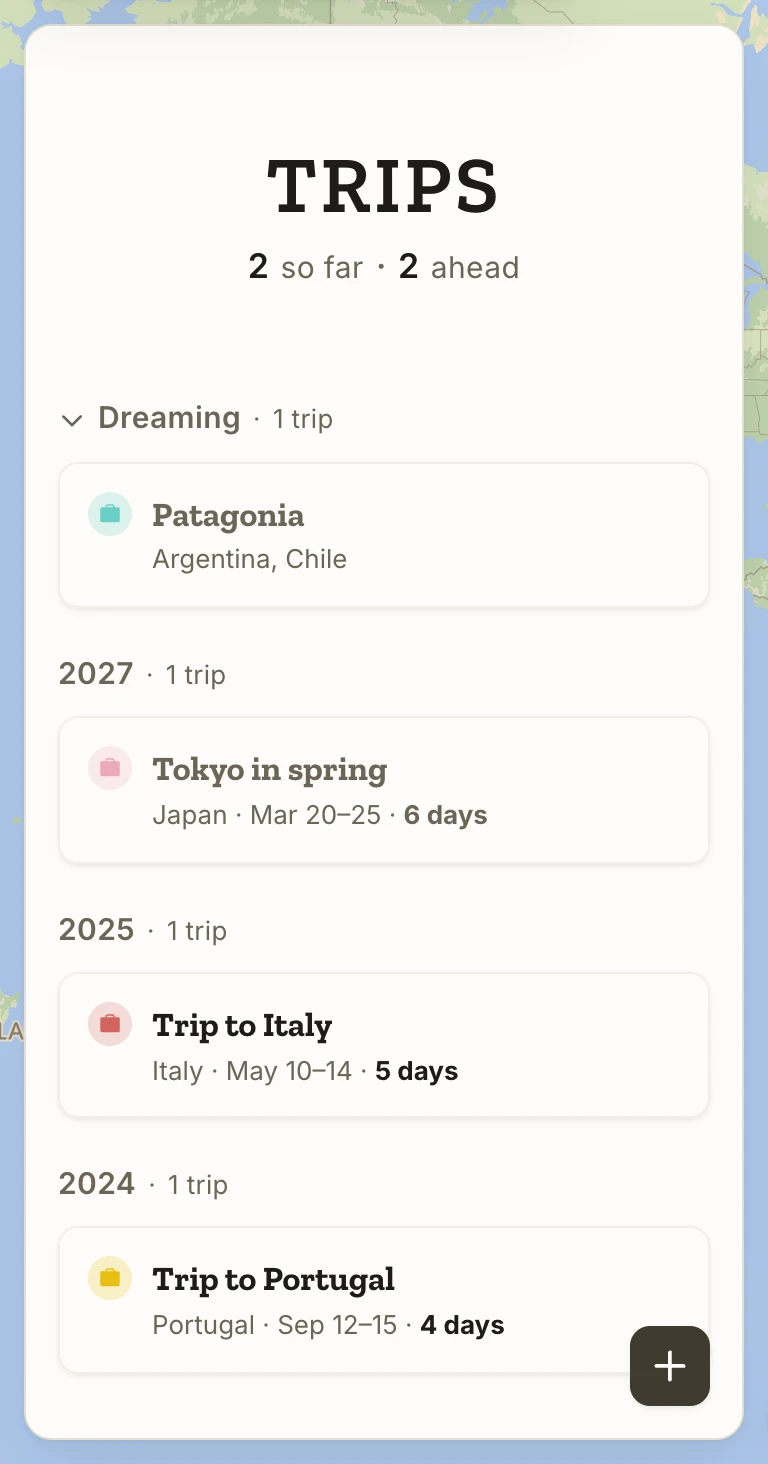
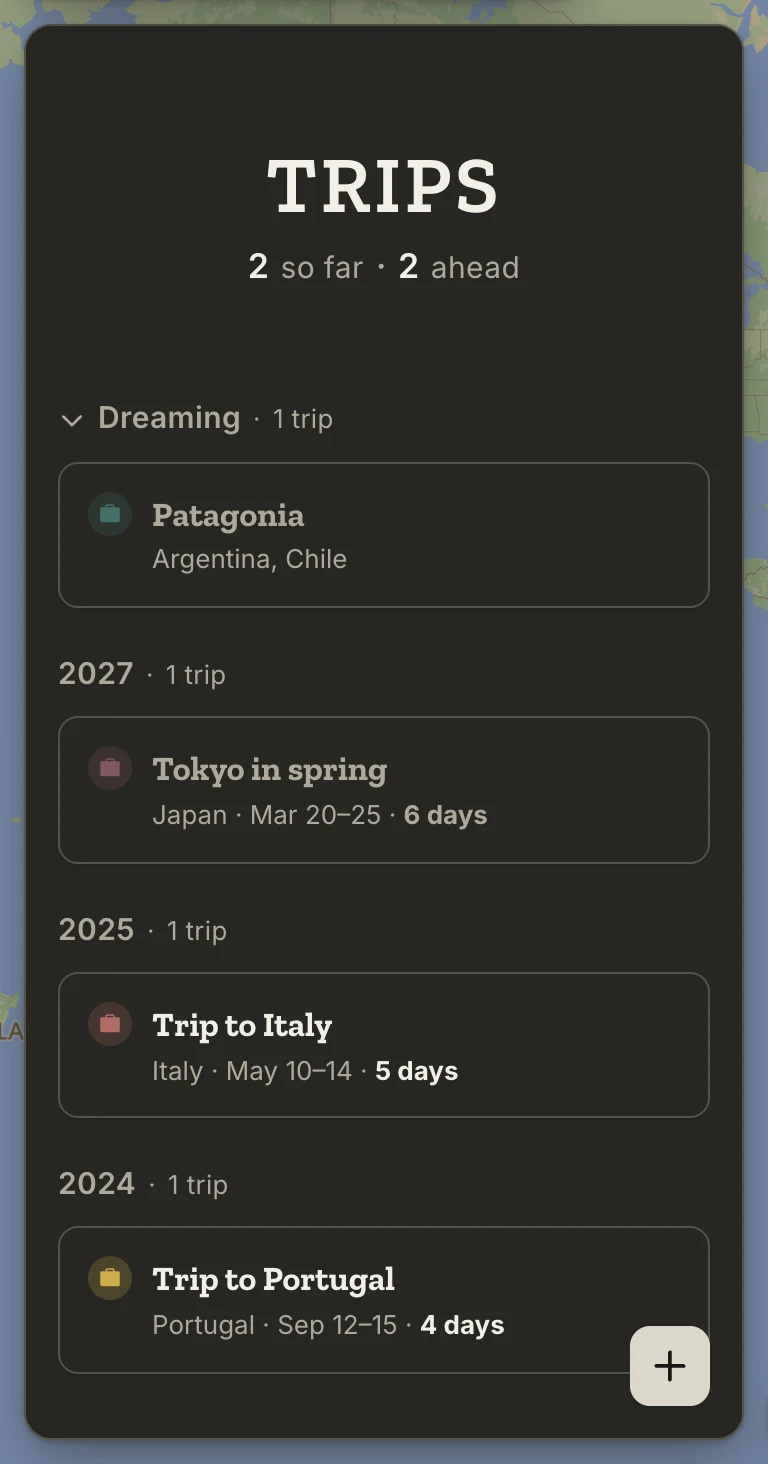
Press the + to create a trip and add whatever you know: a name, dates, a duration, places. Atlas saves the trip as you build it (Save trip is there if you'd rather not wait), and asks before discarding one you leave unfinished.
Until you name a trip, Atlas names it from what it knows: "Trip to Rome", "Chile & Argentina", "March 2027 trip". Press the name to give it your own, and clear it to go back. Every trip has a colour, for its card, its page and its route on the map; press the mark by the name to choose one.
Starting from a place works too: Add to trip on a place's page, then Create new trip, and the new trip opens with that place already on it.
Dates and duration
A trip's date can be as exact as what you know: a day, a month, a year, or nothing yet. Its duration is a separate fact, so "Italy, 2003, one week" is a complete trip, and so is "Argentina, someday, three weeks".
Press the dates line under the trip's name (or Add dates) to set either. The date is built in up to three steps: pick a year, then a month, then the first and last day. Stop at whichever you know. A trip dated to a day shows a date on each day of its itinerary; a trip dated to a month or a year has numbered days, Day 1, Day 2, without dates; a trip with no date waits in Dreaming.
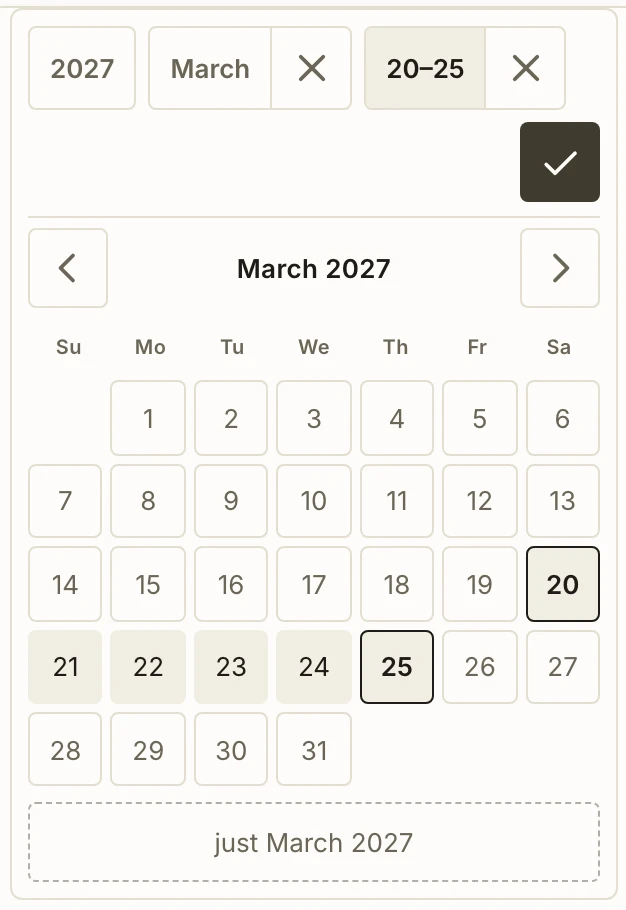
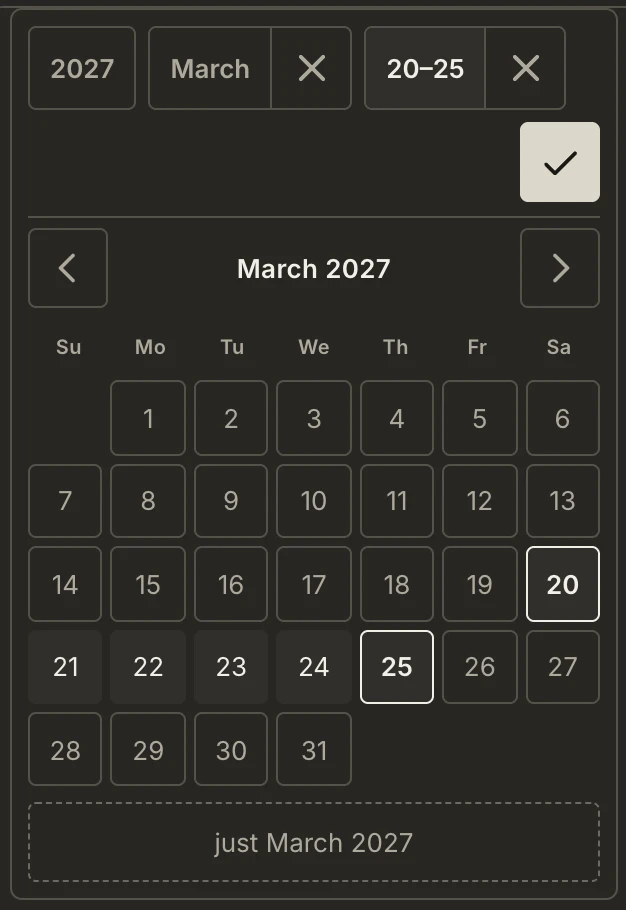
The duration is also the number of days in the itinerary. Add or remove a day there and the duration follows; shorten a trip and the places on the days that go move to Unscheduled.
Often the day you're sure of isn't the first: the flight home, a concert on day four. Open that day's ⋮ on the itinerary, choose Set date…, and the whole trip moves so that day falls on that date.
Two labels appear by themselves: Upcoming on a trip that starts within 60 days, and Active on a trip whose days include today. Both need a date exact to the day; Active also needs a duration, so Atlas knows when the trip ends.
Building an itinerary
A trip's itinerary is the places you've gathered for it. Give them days and an order if that helps, or leave them as a list and decide as you go (Dates and duration covers the days). Places you haven't placed yet wait in Unscheduled, and a trip can stay that way for as long as you like.
Days and Unscheduled. Set a duration and the trip gets its days; Add day adds one at a time. Each day lists its stops in order, and the map draws the route through them. Anything not on a day is in Unscheduled. Press a day to see just that day on the map.
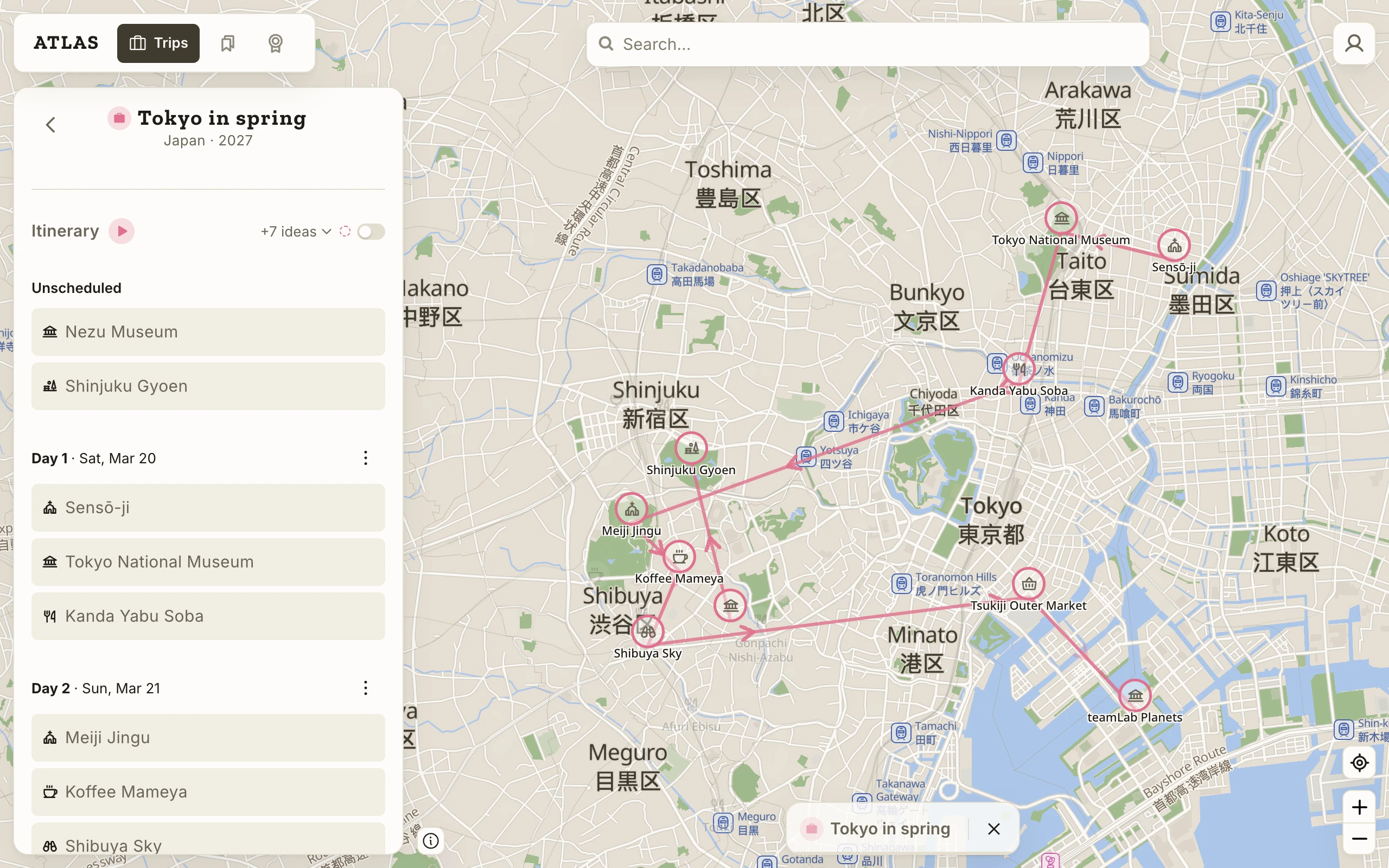
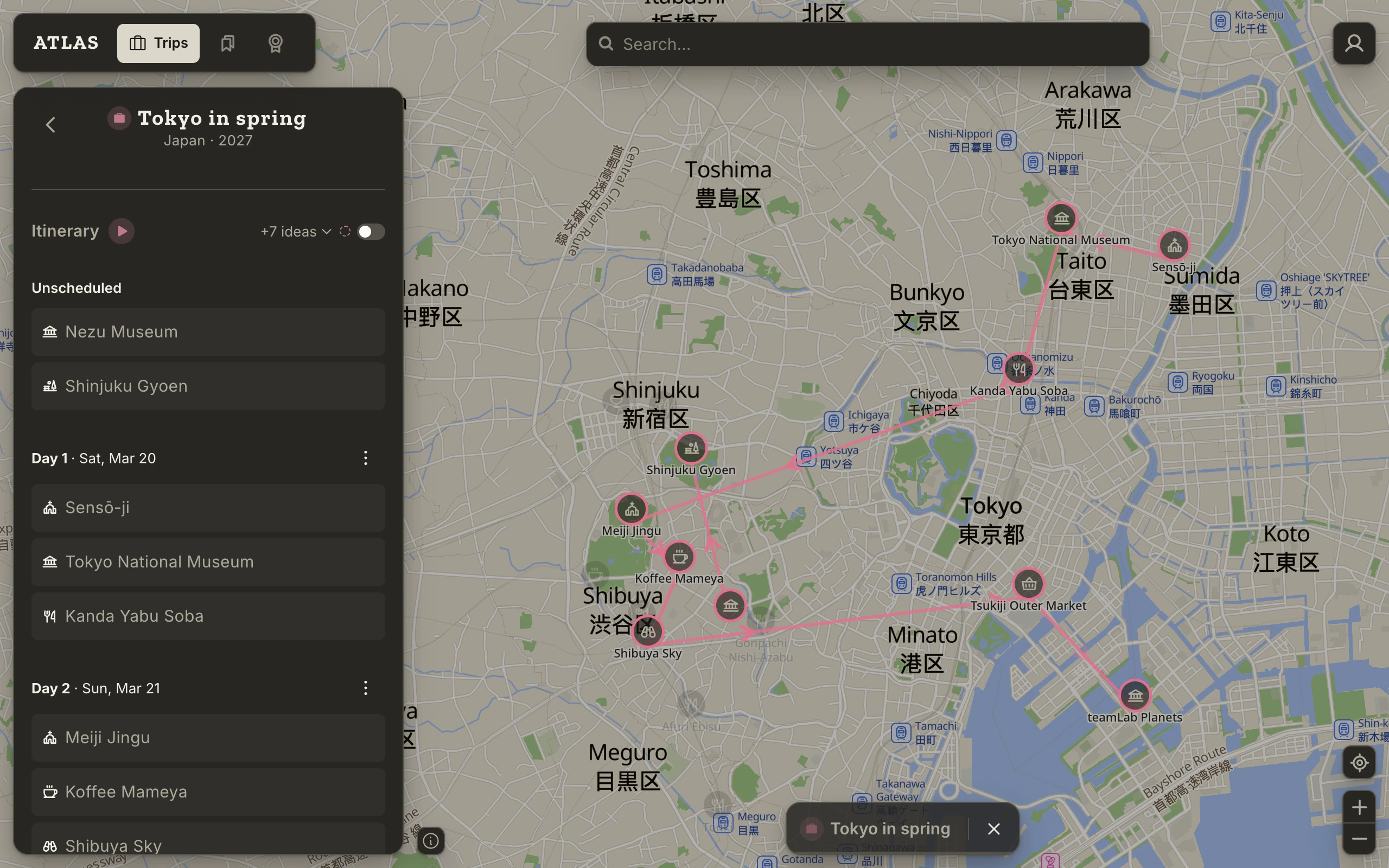
Adding places. From a place's page, or its bar on the map, Add to trip puts the place in Unscheduled and opens the trip. On a laptop you can also drag a pin, a search result or a place's page onto a day. On a phone, touch and hold a pin and carry it onto the itinerary. A place added to a trip is saved, if it wasn't already.
Moving stops. Drag a stop to another position, another day, or back to Unscheduled. Everything a drag does is also in the stop's ⋮ menu, which is easier on a phone, along with Remove from trip. A day's own ⋮ moves the whole day, adds one beside it, or removes it; its places go back to Unscheduled.
A place on several days. A hotel you return to every night, or a city you spend three days in, can be on each of those days. Choose On several days… from the stop's menu and tick them. Atlas treats the run as one stay.
Grouping stops under a place. A city, an island or a park can hold the stops inside it. Drop a stop onto the place, or choose Group under…. The group folds to one line, "Kyoto · 2 stops", and moves as one. Groups are one level deep and stay within a day.
Ideas nearby
While you plan a trip, Atlas shows the places you already want to visit that are near where the trip goes. They aren't recommendations: an idea is a place you saved yourself, marked Want to visit, within a few kilometres of one of the trip's stops and not on the trip. Save more places and you get more ideas.
At the right of the Itinerary heading, "+7 ideas" says how many there are, and the switch after it puts them on the map as pins with a dashed outline in the trip's colour. On the itinerary, a stop with ideas near it carries a pill, "2 ideas"; press it to unfold them. The switch is on for trips ahead and off for trips that are over, and Atlas remembers your choice.
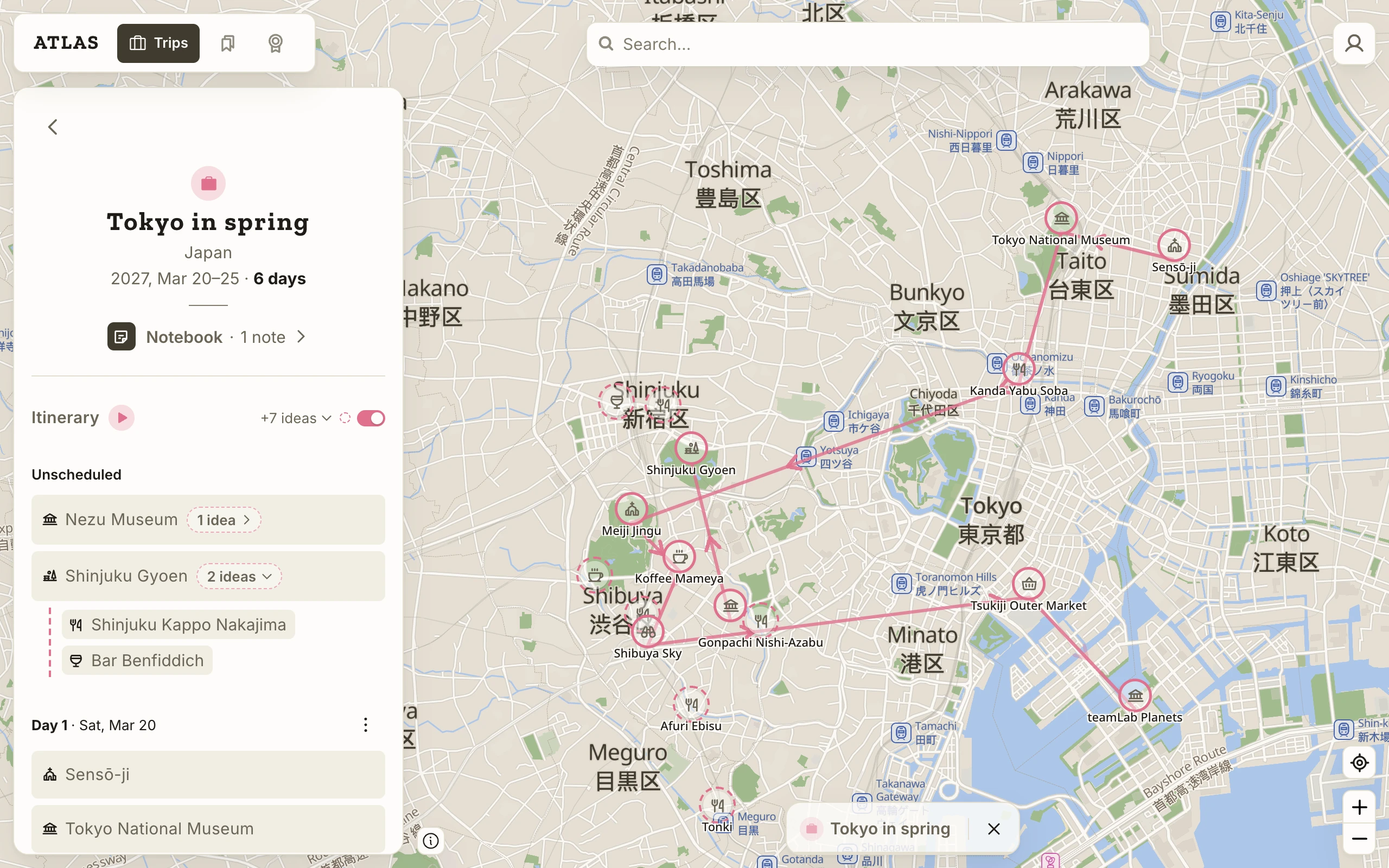
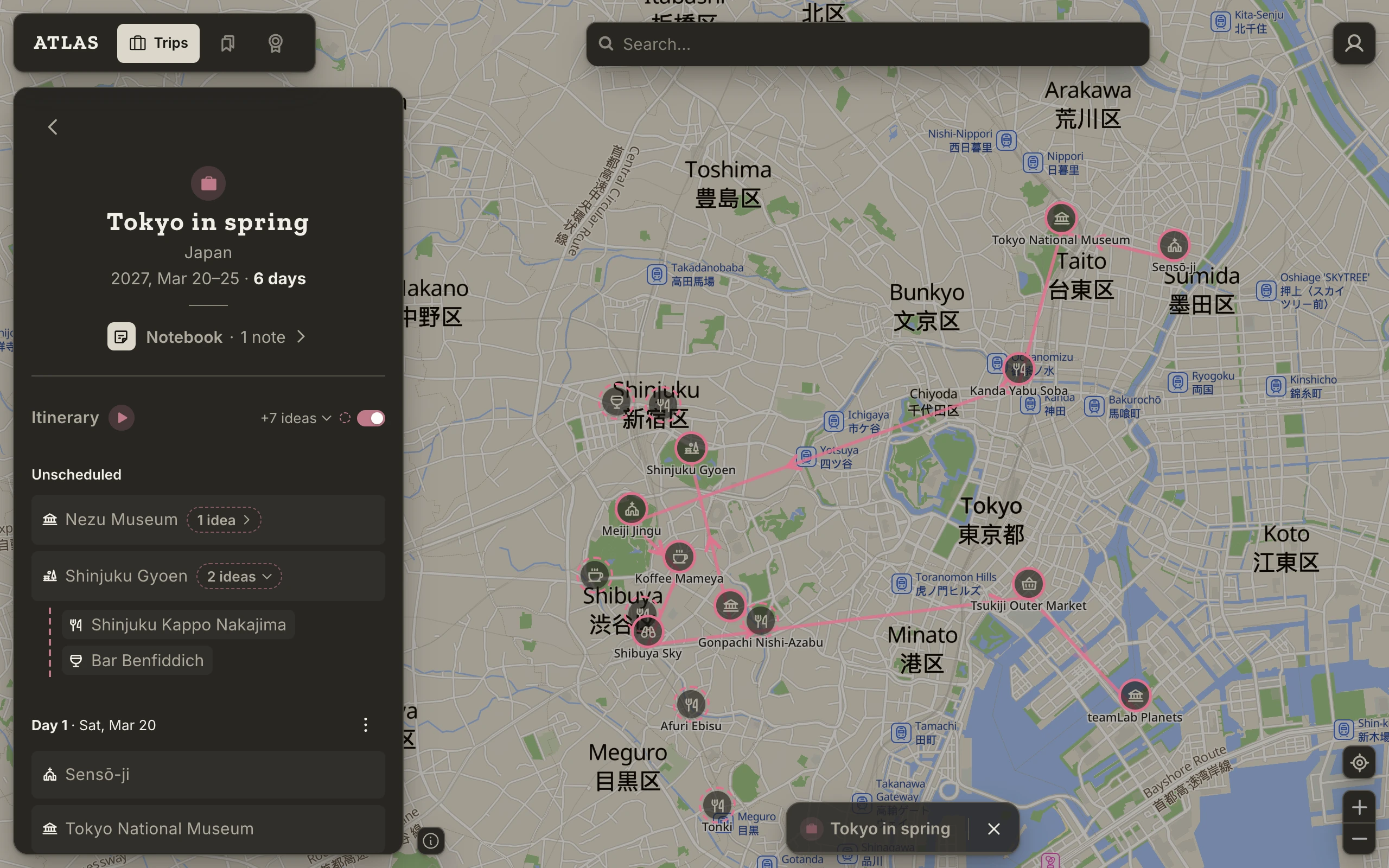
To see only some kinds of place, press the words "+7 ideas" and tick the types you want. The map, the count and the pills follow.
To add an idea to the trip, drag it from a stop's pile onto a day, or press its pin and use Add to trip. Once it's on the trip, it stops being an idea.
Playing a trip on the map
Playing a trip walks you through it one stop at a time, in the order of the itinerary. Nothing moves by itself: the map goes to the next stop when you press for it.
Press the ▶ beside Itinerary. A bar appears over the first stop's pin with its name and two arrows, and the itinerary follows along. Step with the arrows on the bar or the arrow keys on the keyboard; press the name to open the stop's page. A stop that holds other stops plays as one step, with its own count to go into.
Press Escape, or an empty part of the map, to stop. The other keys, including Home, End and Shift with an arrow, are under Keyboard shortcuts. One thing to know: after you press the map itself, the arrow keys pan the map instead; press a stop or an arrow on the bar to get back to stepping.
Checking in
On a trip that's underway, a check-in says you made the stop. The place becomes Visited on the spot, so your map and your Passport keep up with you instead of waiting for the trip to end. The itinerary is the plan; check-ins are what happened.
Today. A trip with exact dates opens on today while it's running, and sits at the top of Trips. Each of today's places has a circle at the end of its row: press it to check in, and press again to undo. Only today has circles. Days behind you count as done on their own, and days ahead can't be checked in yet. If you never made it somewhere, take it off the trip before the trip ends, since a trip that's over counts everything still on it as visited.
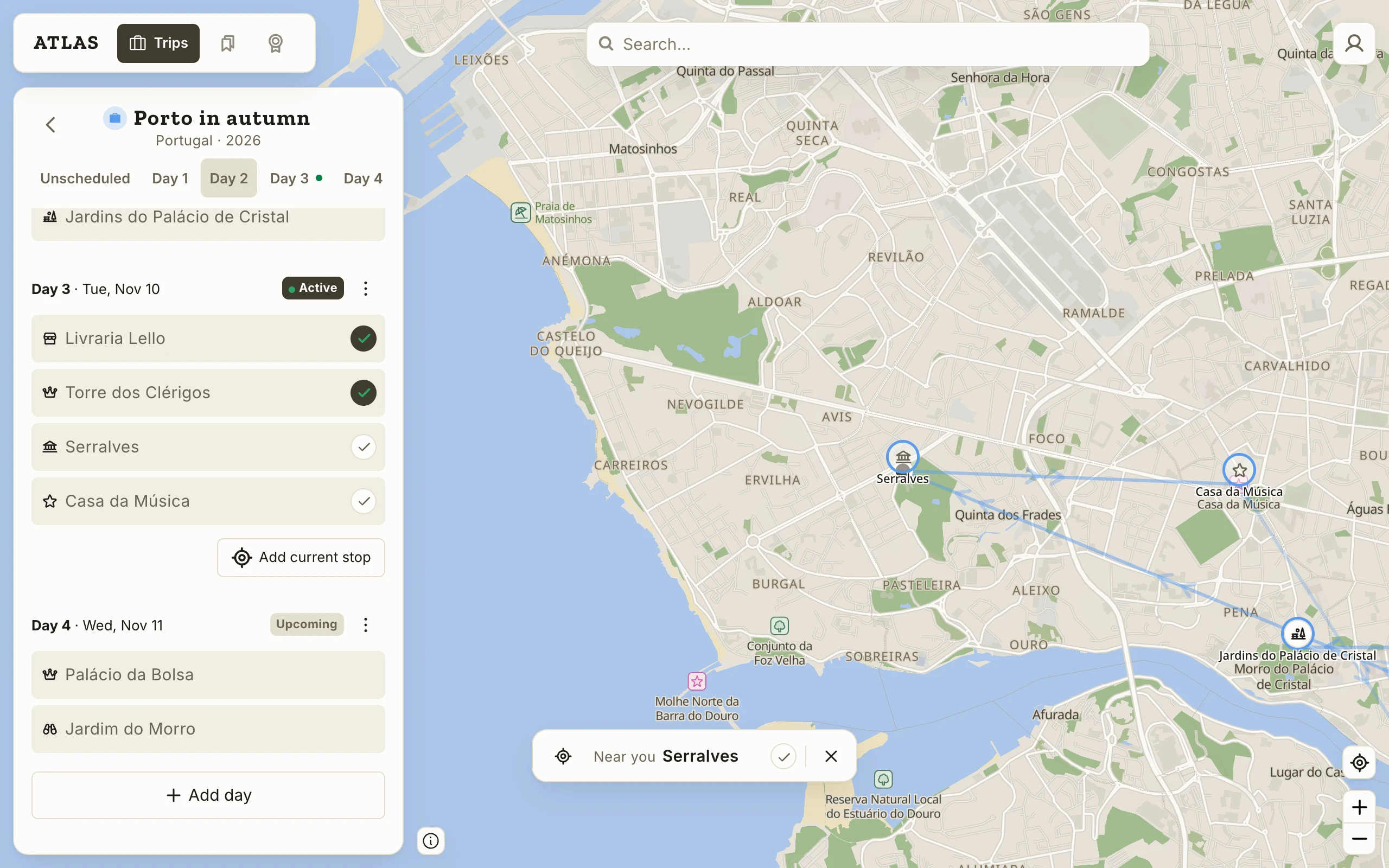
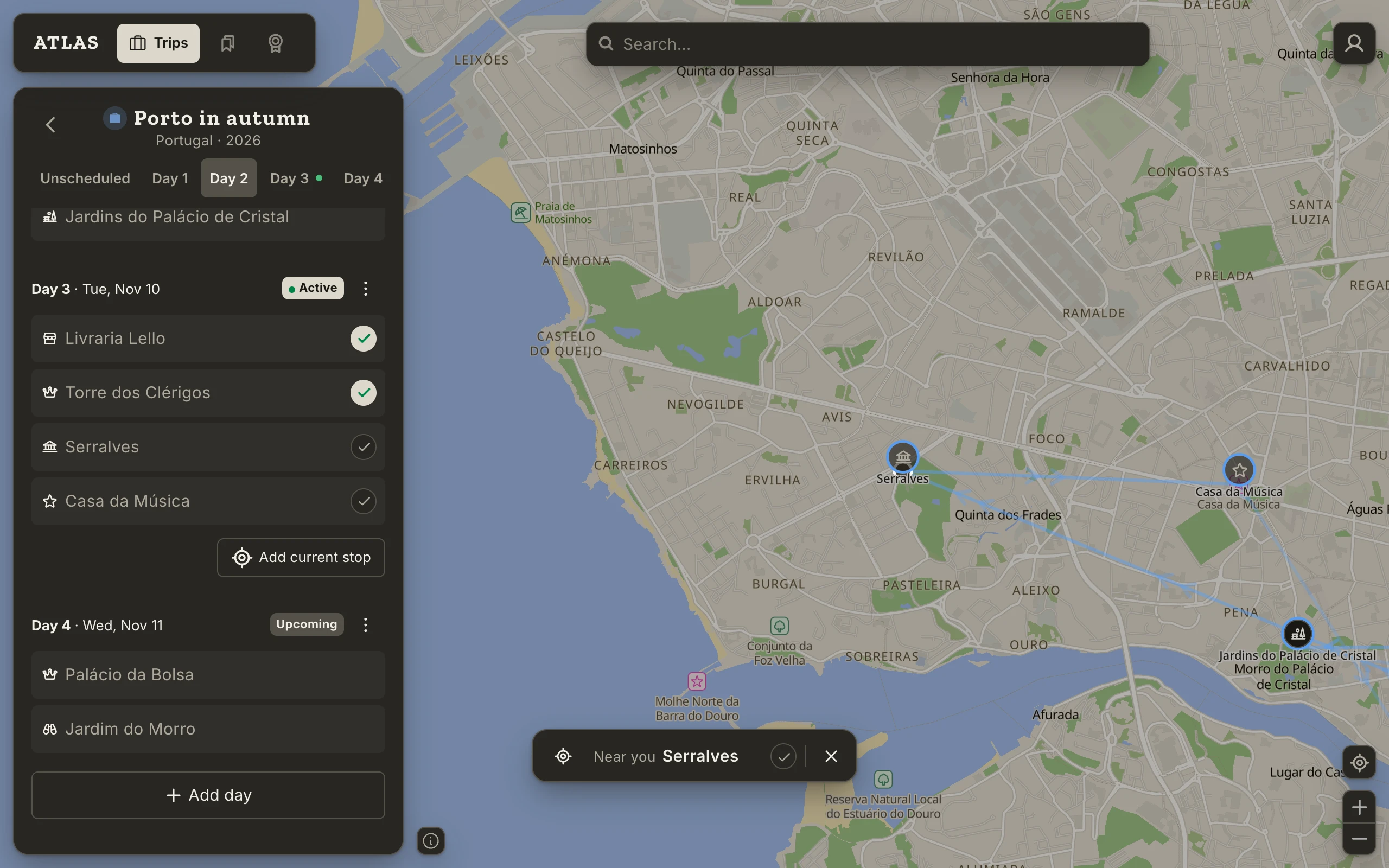
Near you. Press the locate button and, when you're at one of today's places, a Near you card offers its check-in over the map. Not there? The × tells Atlas not to ask about that stop again today. Atlas checks your position against today's stops on this device, and asks before checking you in.
Somewhere that wasn't planned. Add current stop, under today's places, lists the places around you. Pick one and it joins today, already checked in. If the place isn't on the map, Add missing place puts it there.
The Notebook
Every trip has a Notebook for what doesn't fit on an itinerary: booking reminders, a rough plan, a diary, tips for a friend who's going next. Press Notebook, the row above the Itinerary. On a wide window it opens beside the trip, so you can write with the map in view.
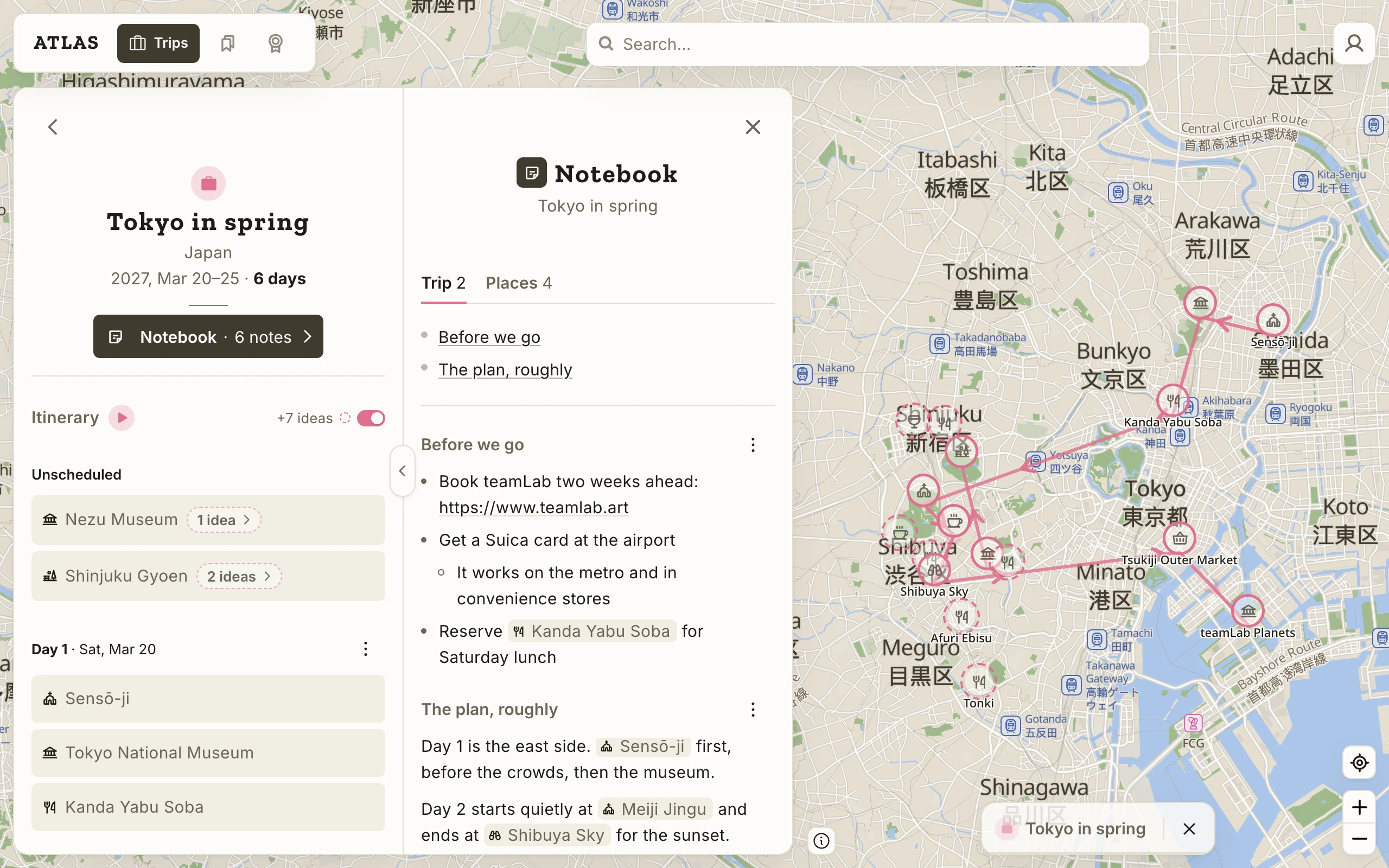
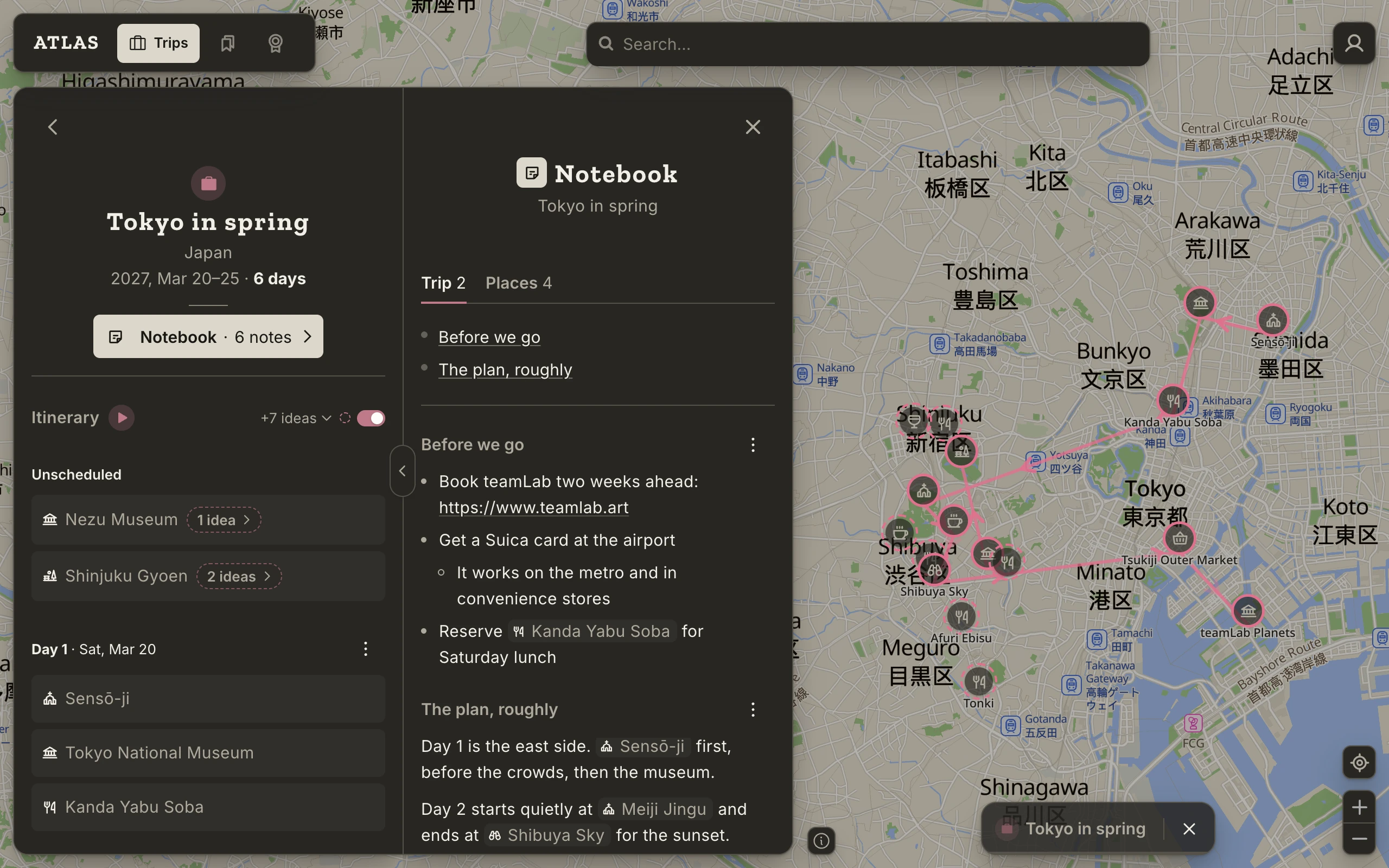
The Trip tab is your own writing, in sections with a title and text. There is no edit mode and no save button: press and type, and it saves a moment after you stop. Start a line with "- " for a bullet, and use Tab to indent one. Type @ to name one of the trip's places; it becomes a chip that shows the place on the map when pressed.
The Places tab gathers the notes on the trip's places, grouped by city. They are the same notes as on each place's page, so you can edit them here or there. The trip's ideas nearby are listed here too, when they have notes.
Offline, the Notebook can be read but not changed.
Recording past trips
Trips aren't only for planning. Record one you took years ago and Atlas fills in your map and your Passport from it.
Start a trip, give it the date you remember (a year alone is enough), and add its places. There's no need to rebuild the days: a trip with only a year can hold its places as a plain list. Once the trip's time has passed, its places count as Visited and its countries count in Passport. Places you'd go back to can be marked Want to revisit afterwards.
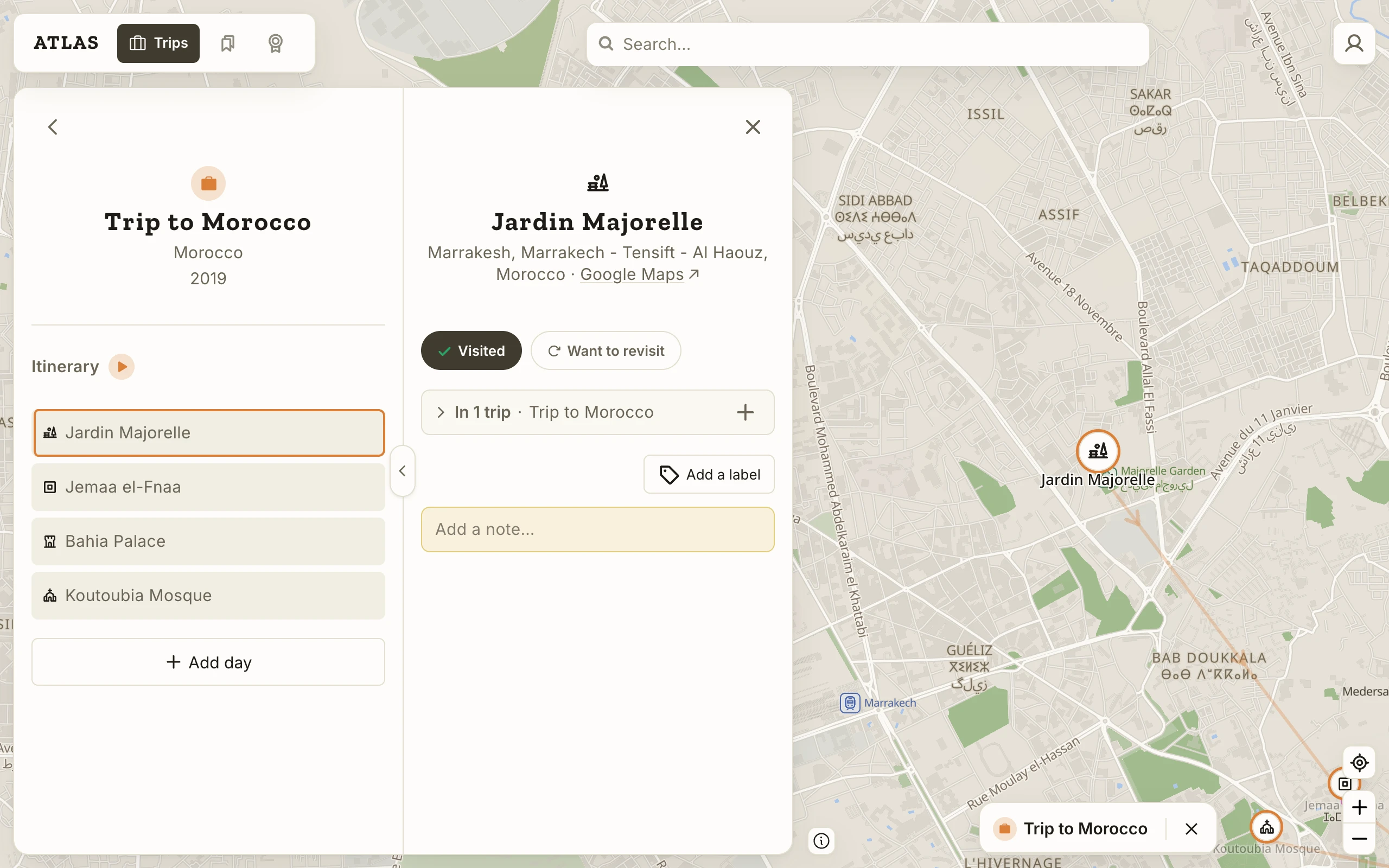
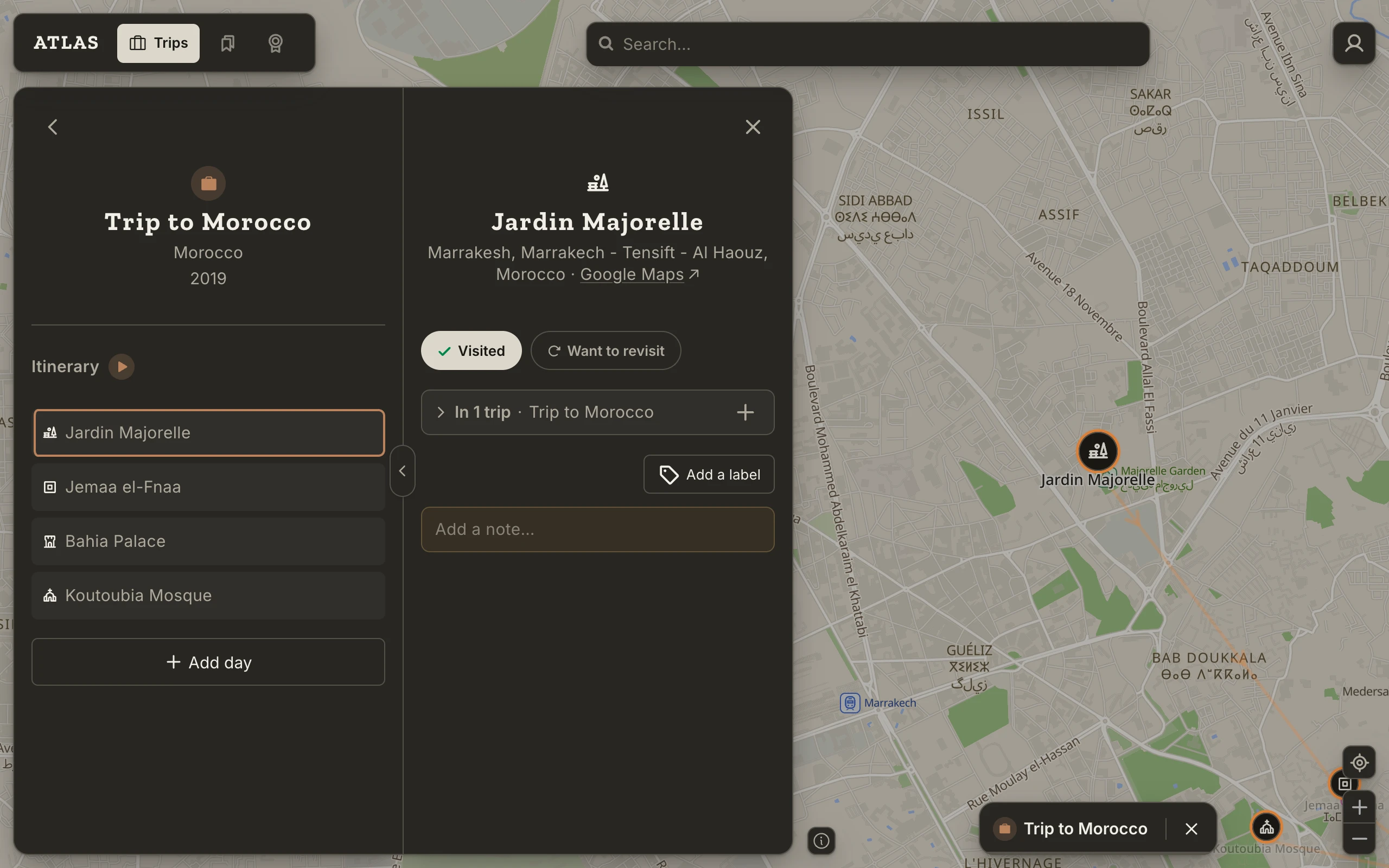
A trip is over once its month or year has ended, or, for a trip dated to the day, once its last day has passed. A trip with an exact start date needs a duration for that; a trip with no date at all stays a plan.
Deleting a trip
Delete trip is in the ⋮ at the top of the trip's page. The trip, its itinerary and its Notebook go; your places stay, and places you had visited on the trip stay Visited. For a trip with places, Atlas asks you to type its name first, and offers to remove from your places the ones that aren't on any other trip. There is no undo.
Passport
Your Passport
Passport shows how much of the world you've been to: the number of countries visited out of the 193 members of the United Nations, a chart of the continents, and every country listed under its continent. Nothing here needs filling in. It grows as you save places and take trips.
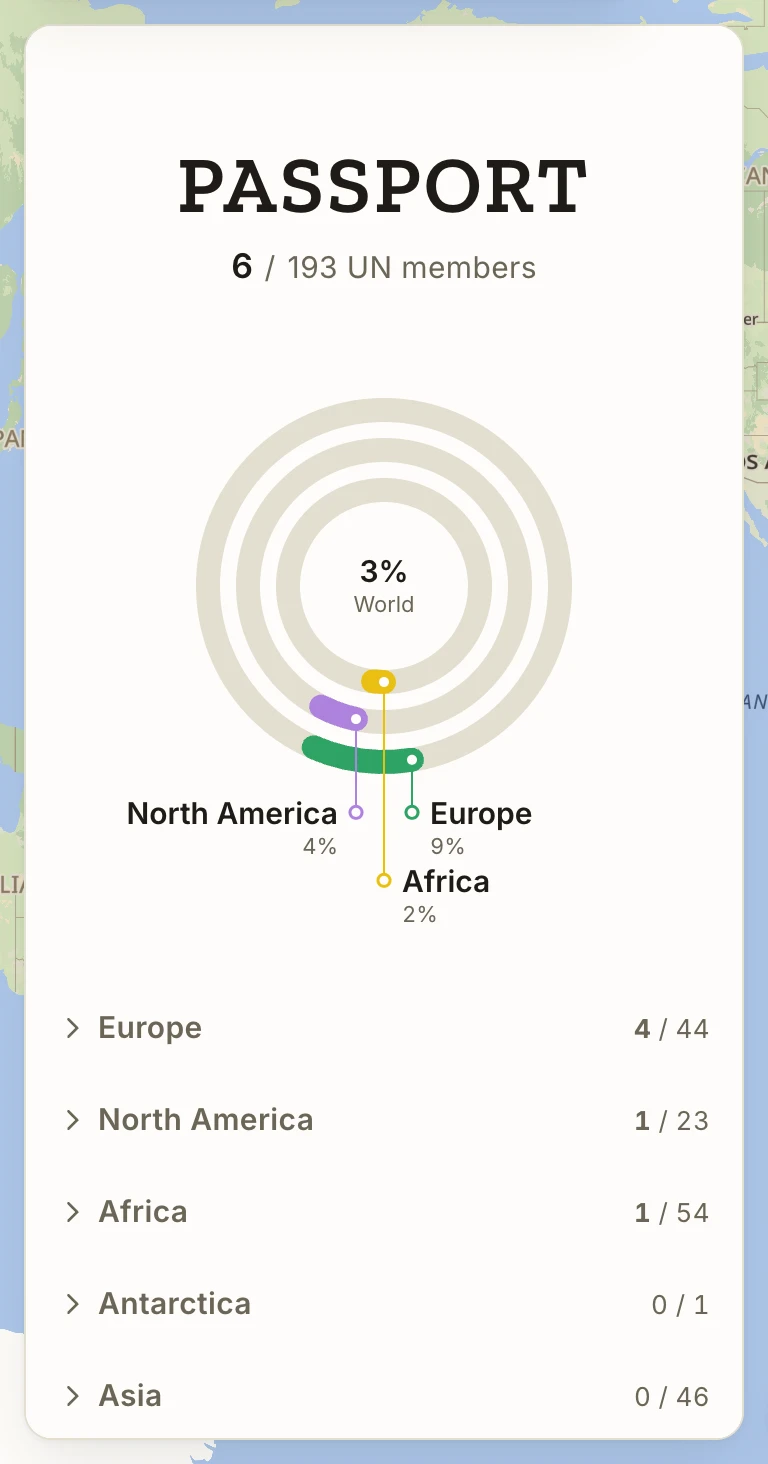
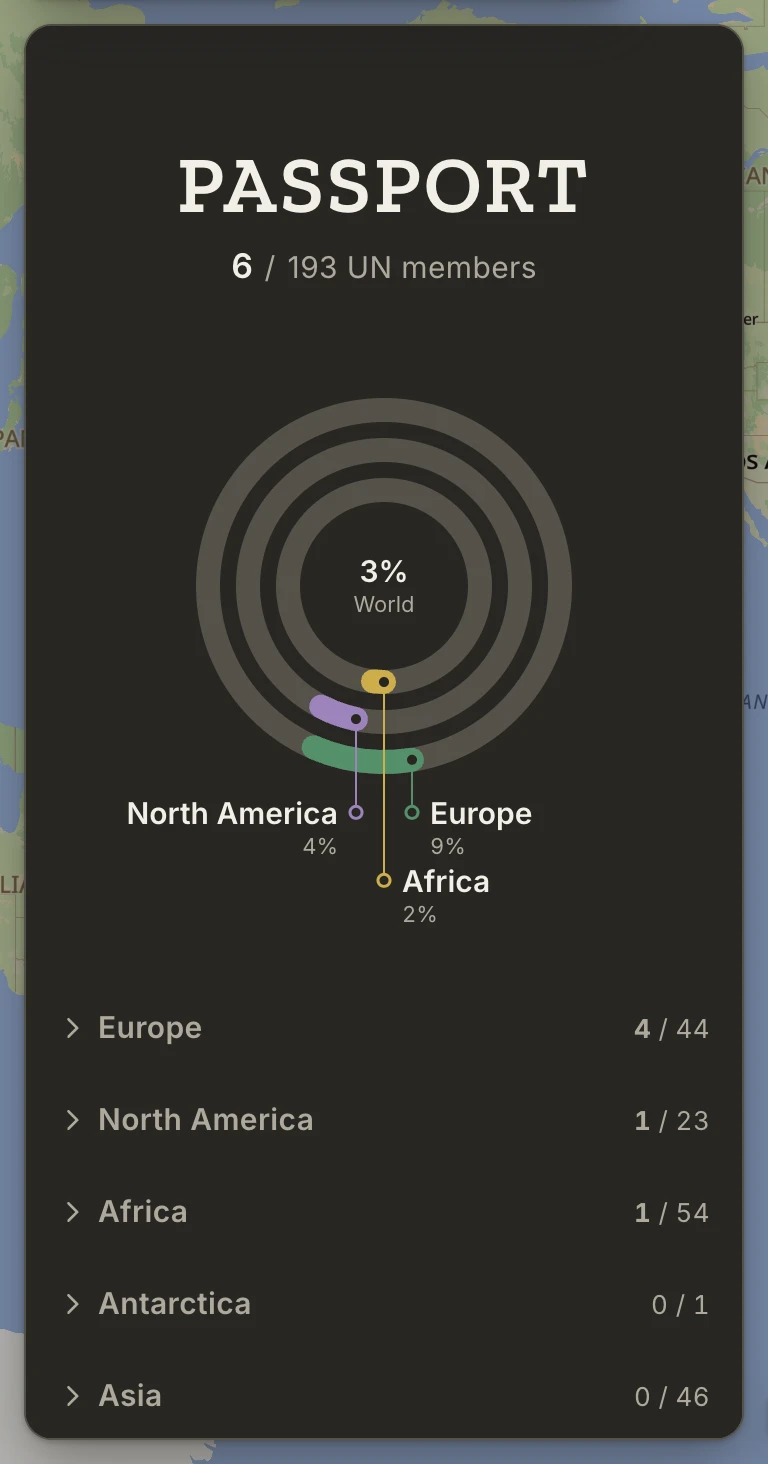
Each continent you've been to has a ring, filled by the share of its countries you've visited; the figure in the middle is your share of the world. Press a continent to open its list below. An open list starts with a small map of the continent with your countries filled in, then every country, visited ones first. Press a country on the map or its row to open its page.
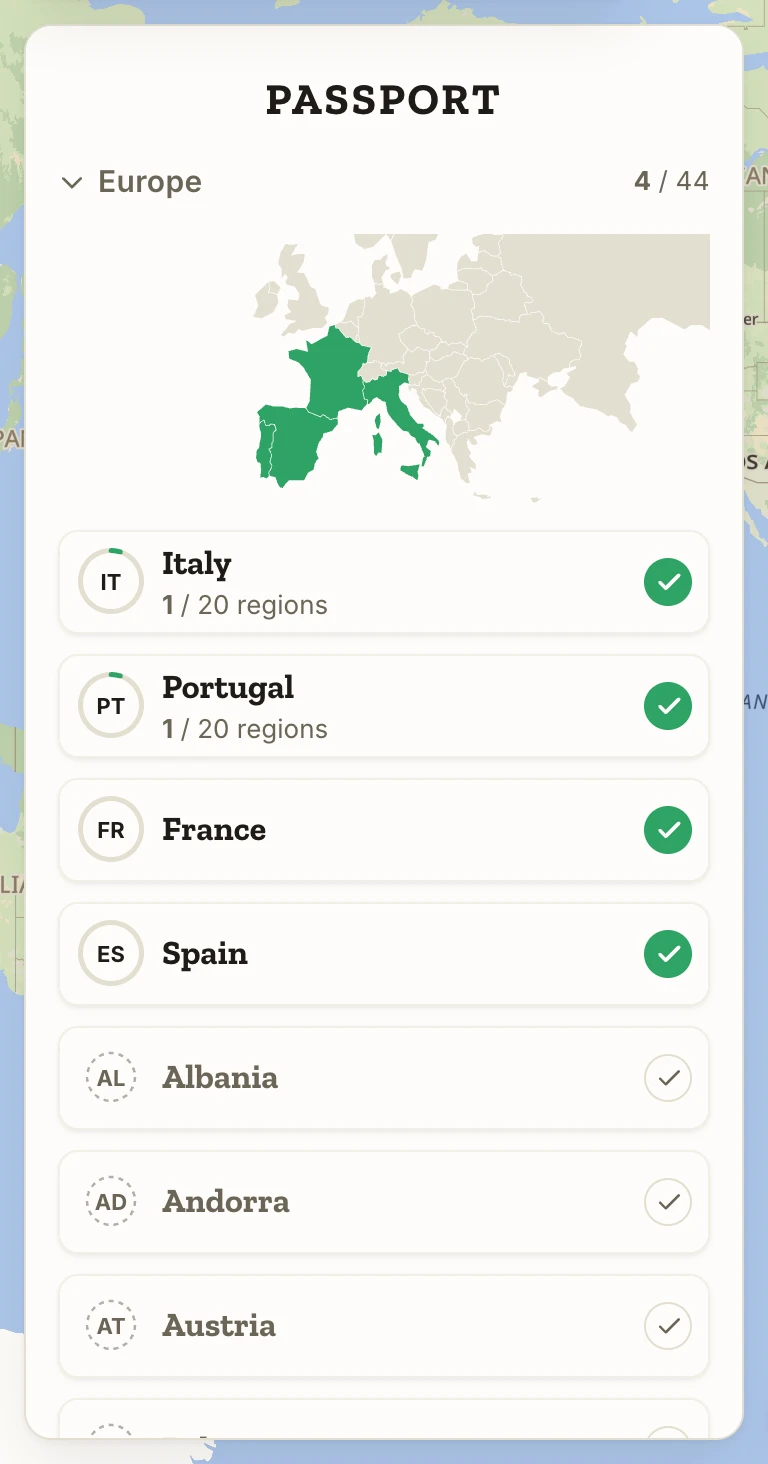
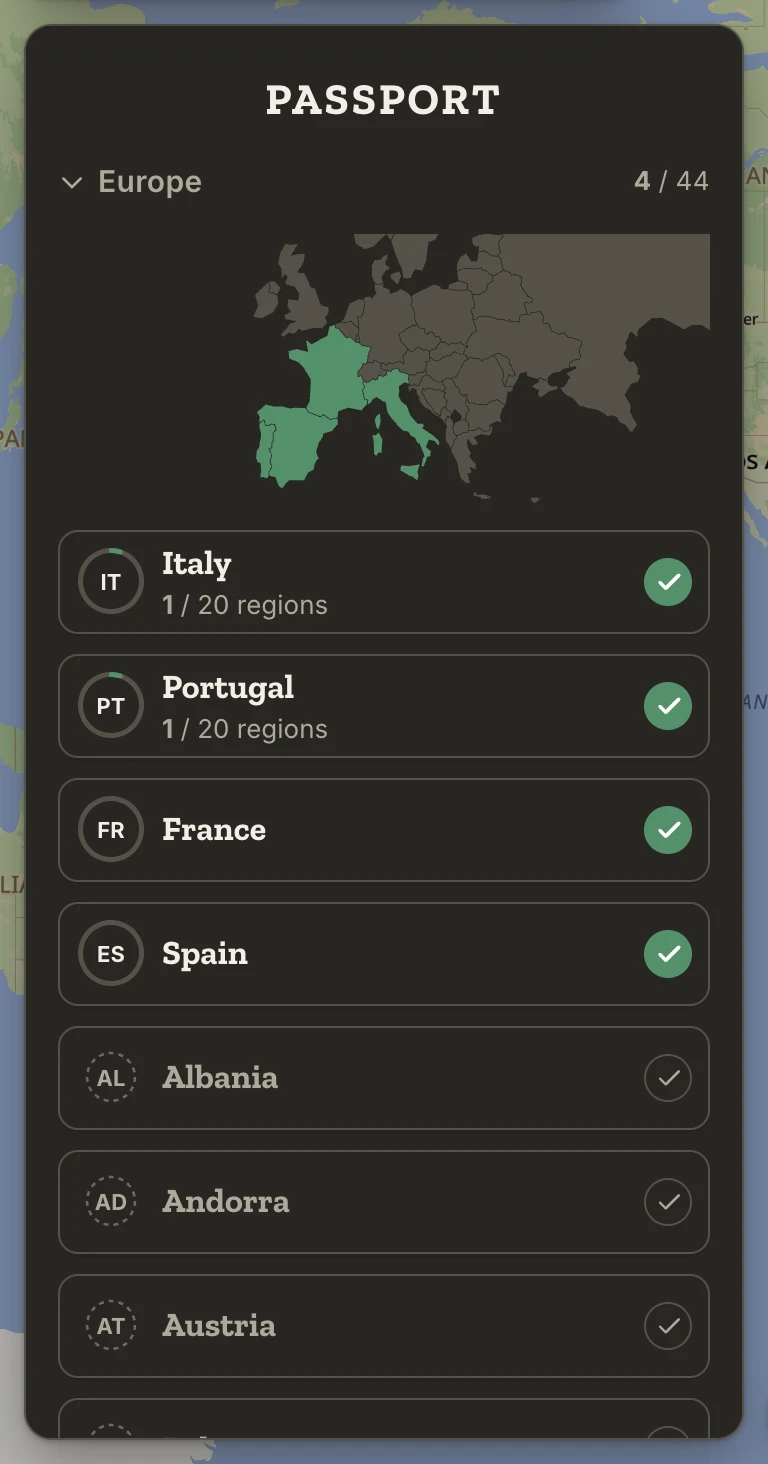
A country's row shows its code inside a ring that fills with the share of its regions you've visited, and ends in a check that is filled when the country counts.
What counts as visited
A country is visited when a place you've marked Visited is in it. One is enough, and it can be anything: a cafe, a museum, a city. Want to visit never counts, however many places you've saved somewhere.
Your trips do most of this, since a trip that's over marks its places Visited (see Want to visit and Visited). For somewhere you went before you kept places in Atlas, press the check at the end of the country's row.
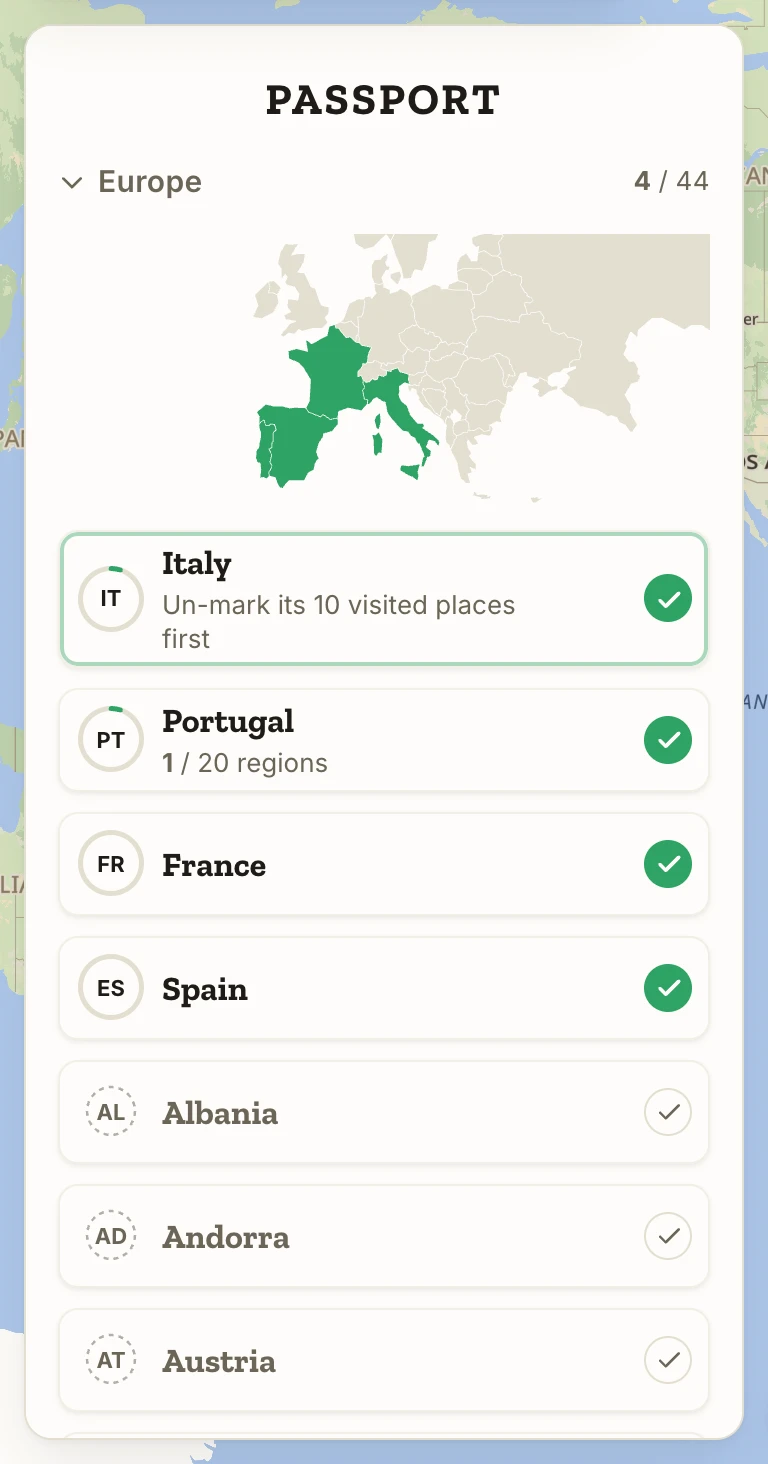
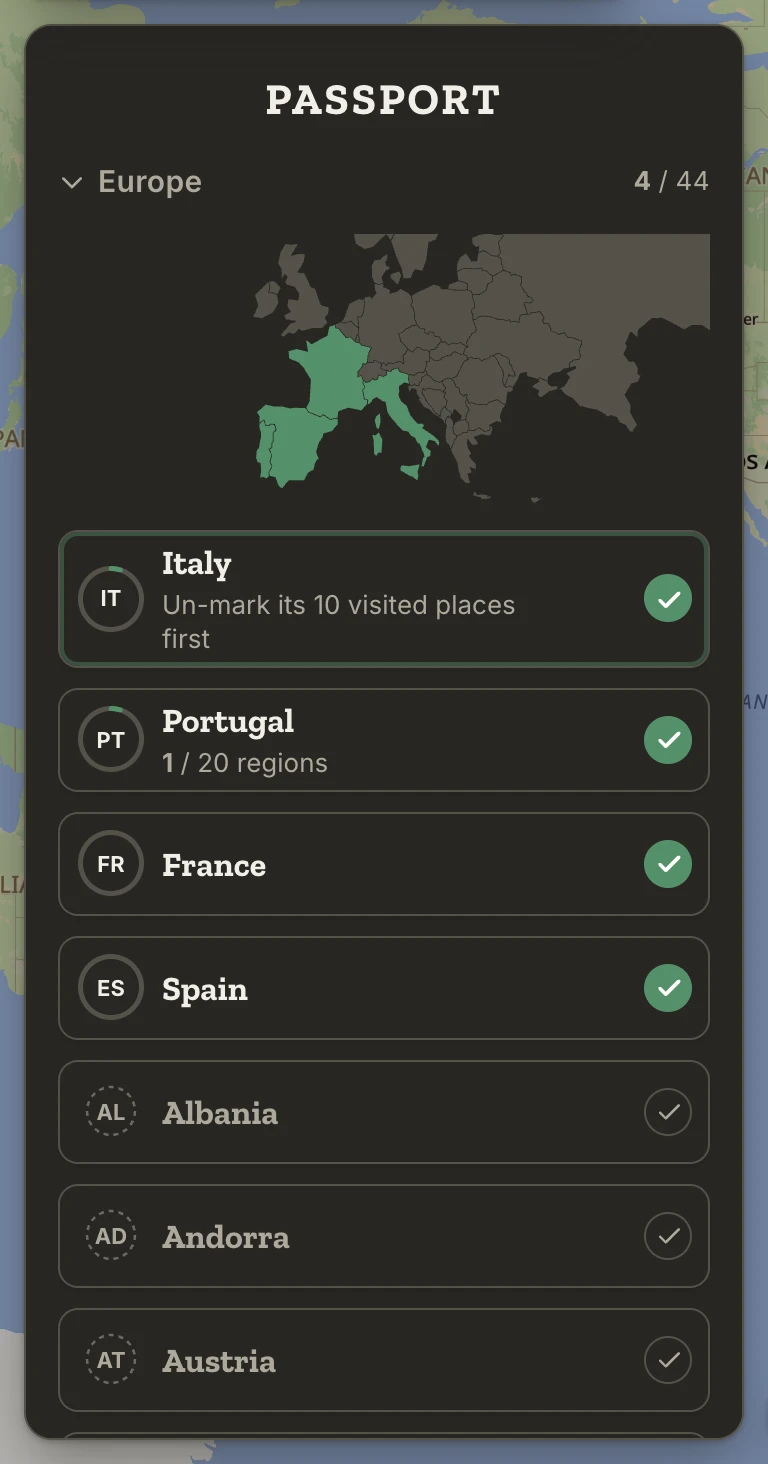
A check held by visited places won't come off until those are un-marked; Atlas says which.
Regions
Every country has a page: which of its regions you've visited, and how widely you've travelled each one. It opens beside the list on a laptop, over it on a phone.
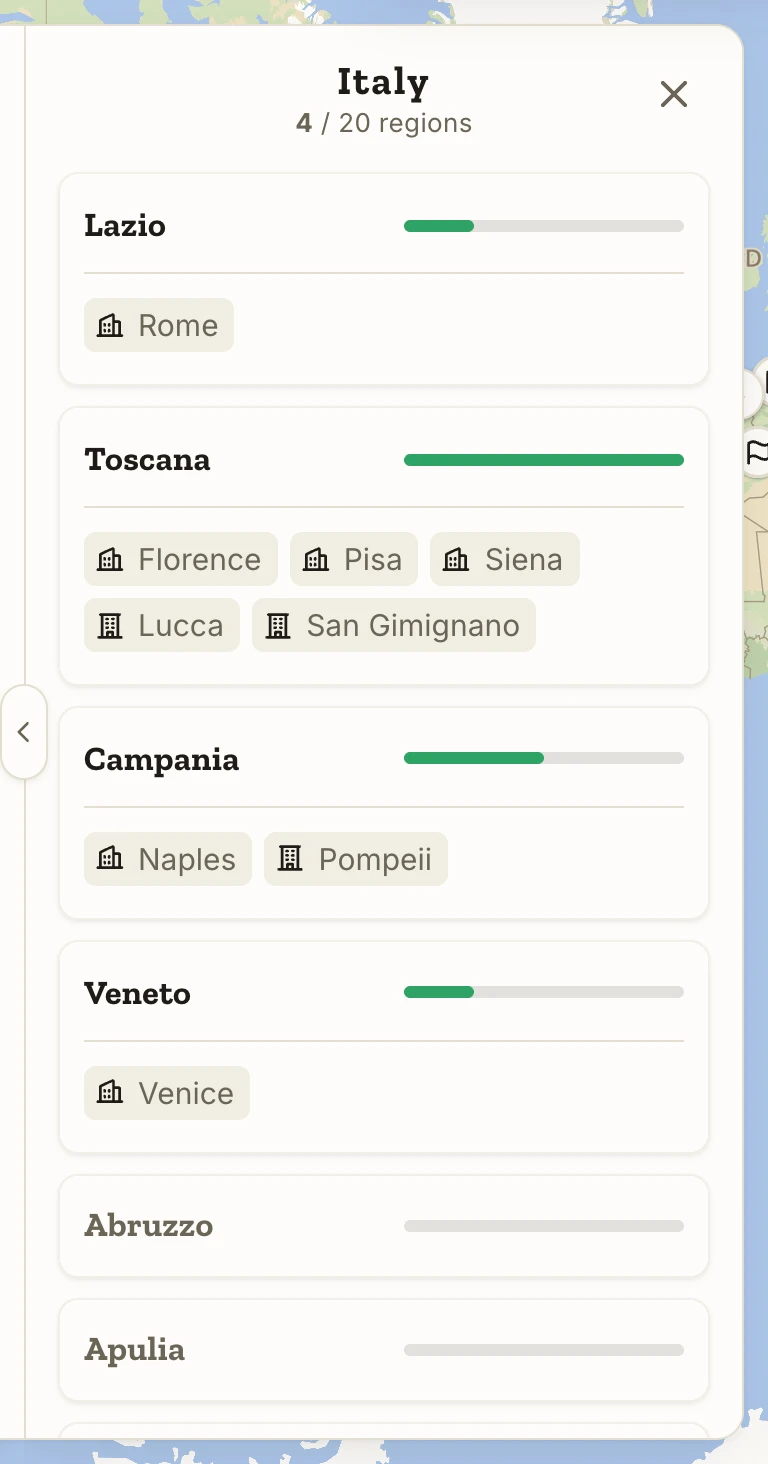
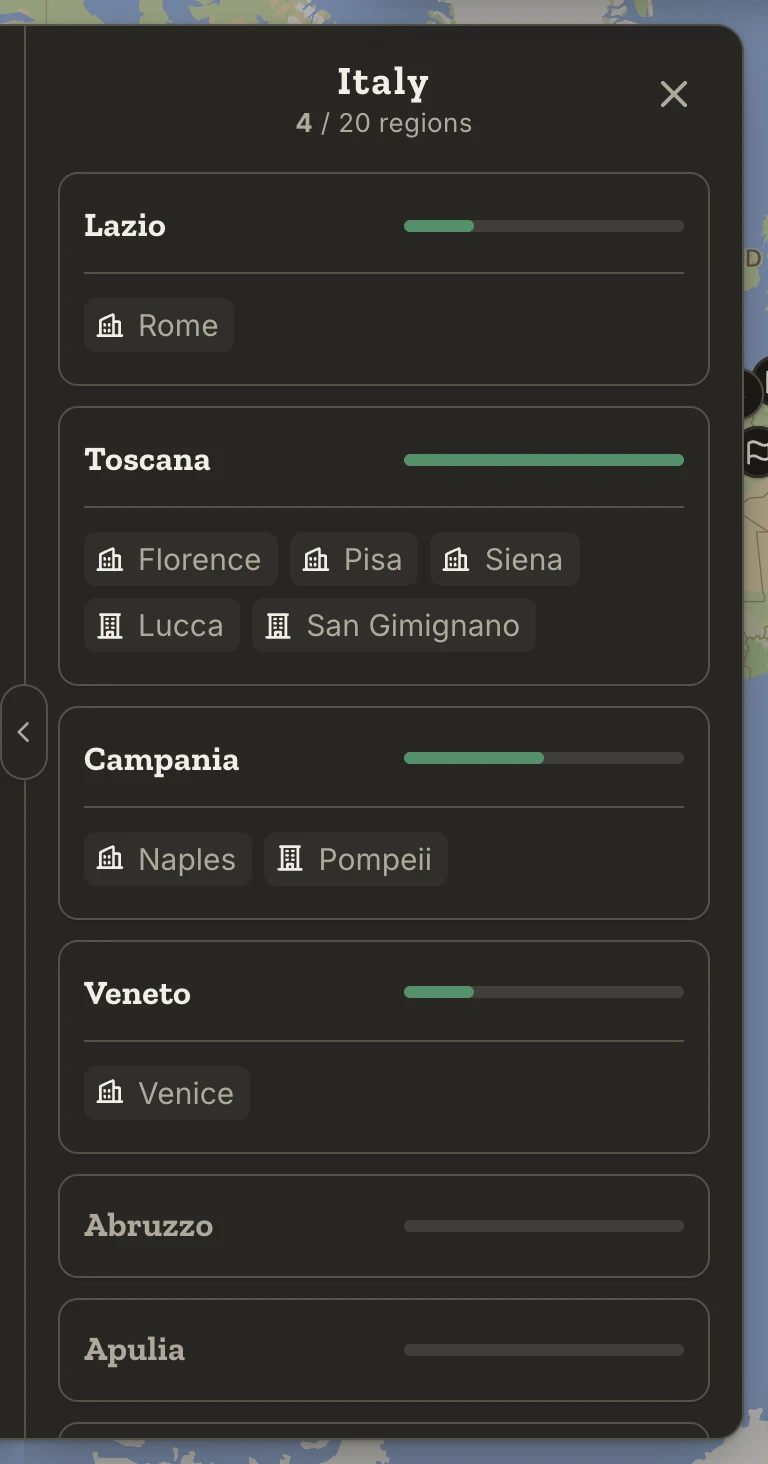
A region is visited when a Visited place lies inside it. Its bar fills by the number of separate towns your visited places fall in: one town a quarter, two half, three or four three quarters, five or more full. Ten restaurants in Rome fill a quarter of Lazio's bar; five towns across Tuscany fill all of Toscana's. The cities, towns and villages you've visited in a region are listed under its bar.
Map and search
Search
The box at the top looks in two places at once: the whole world, and your own Atlas. Press it, or ⌘K (Ctrl+K on Windows and Linux) or / from anywhere.
Yours come first: saved places whose names match, then your trips and saved views, then places found by a label or a word from a note. The world's places follow. Atlas also looks around the part of the map in view, so nearby matches are included.
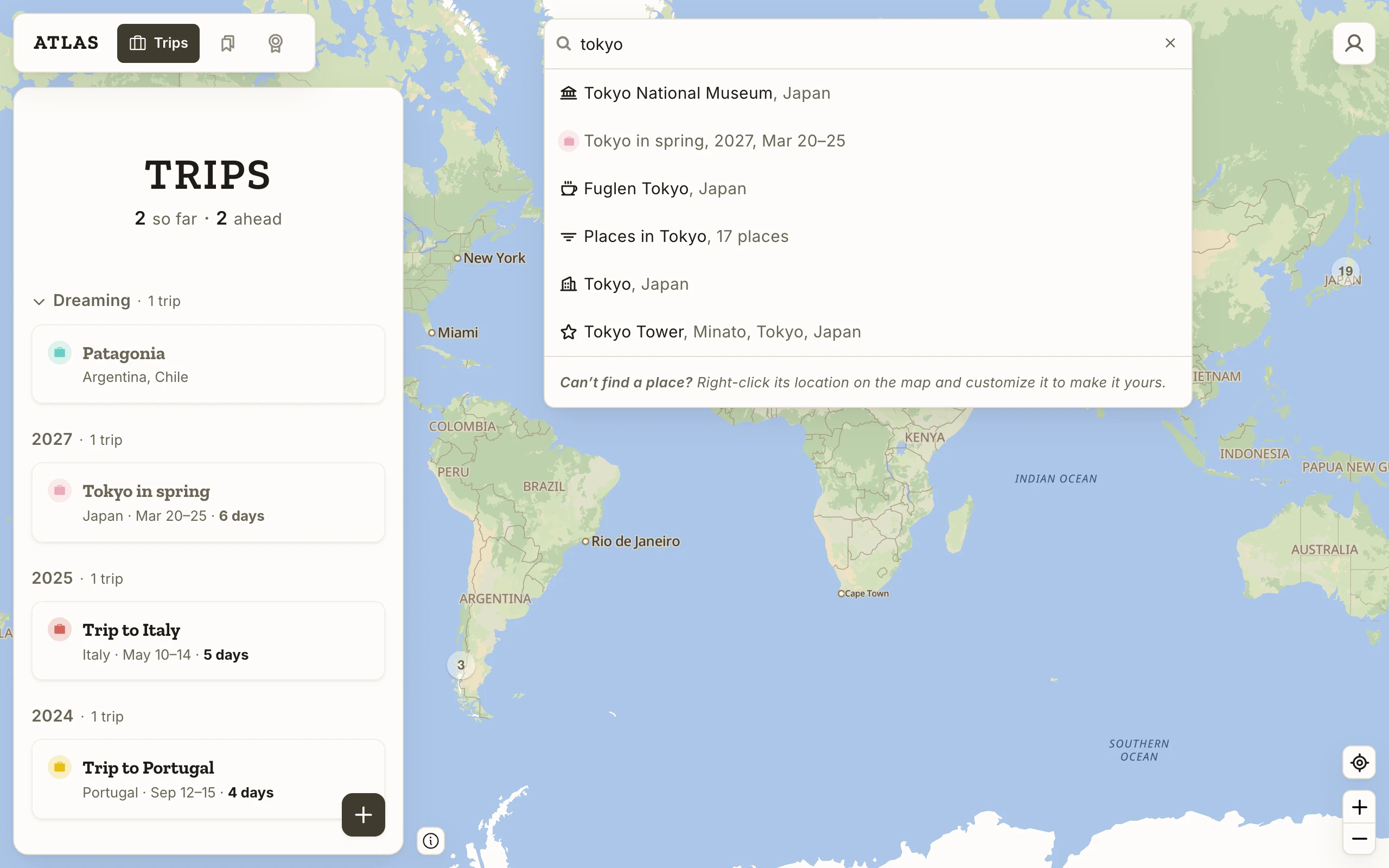
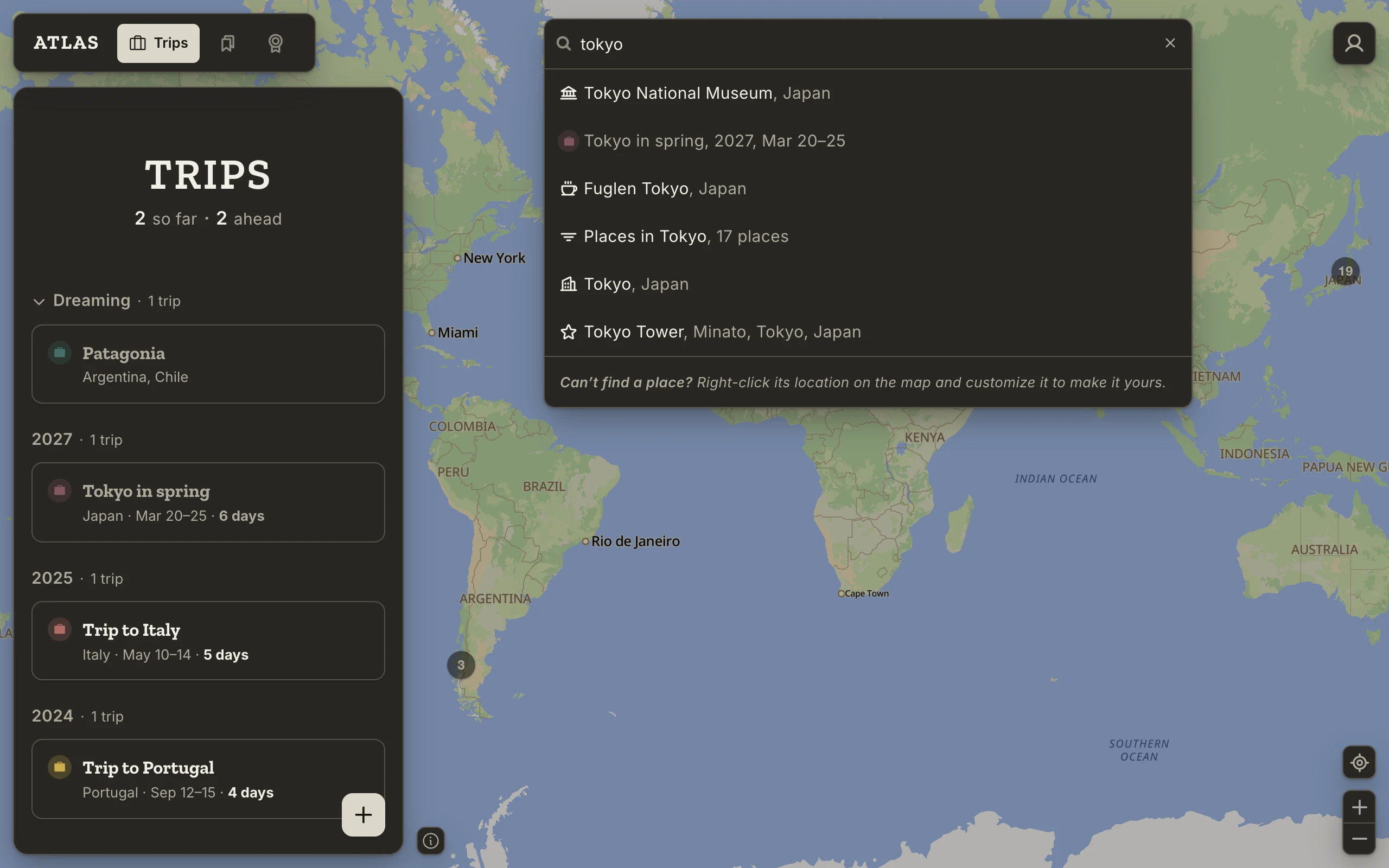
Pick a place and the map flies to it with its bar open. A phrase made of things you filter by, such as "museums in rome" or "favorite restaurants", is read as filters and opens Places with them picked. Coordinates open a new place at that exact point. A street address with a house number works too, placed approximately when the map doesn't know the number.
Press the empty box for the last three places you picked. Offline, search looks only through your own places, trips and views, and says so.
Reading the map
Every saved place is a pin, and how it is drawn says two things.
Have you been? A hollow pin is a place you want to visit and haven't been to. A filled pin is a place you've visited, whether or not you'd go back. The glyph inside is the place's Type.
Is it part of what you're looking at? Open a trip and its stops stay at full strength, ringed in the trip's colour and joined by its route, while every other place fades. Filters and saved views do the same for the places that match. Nothing is hidden; the faded pins are there for context.
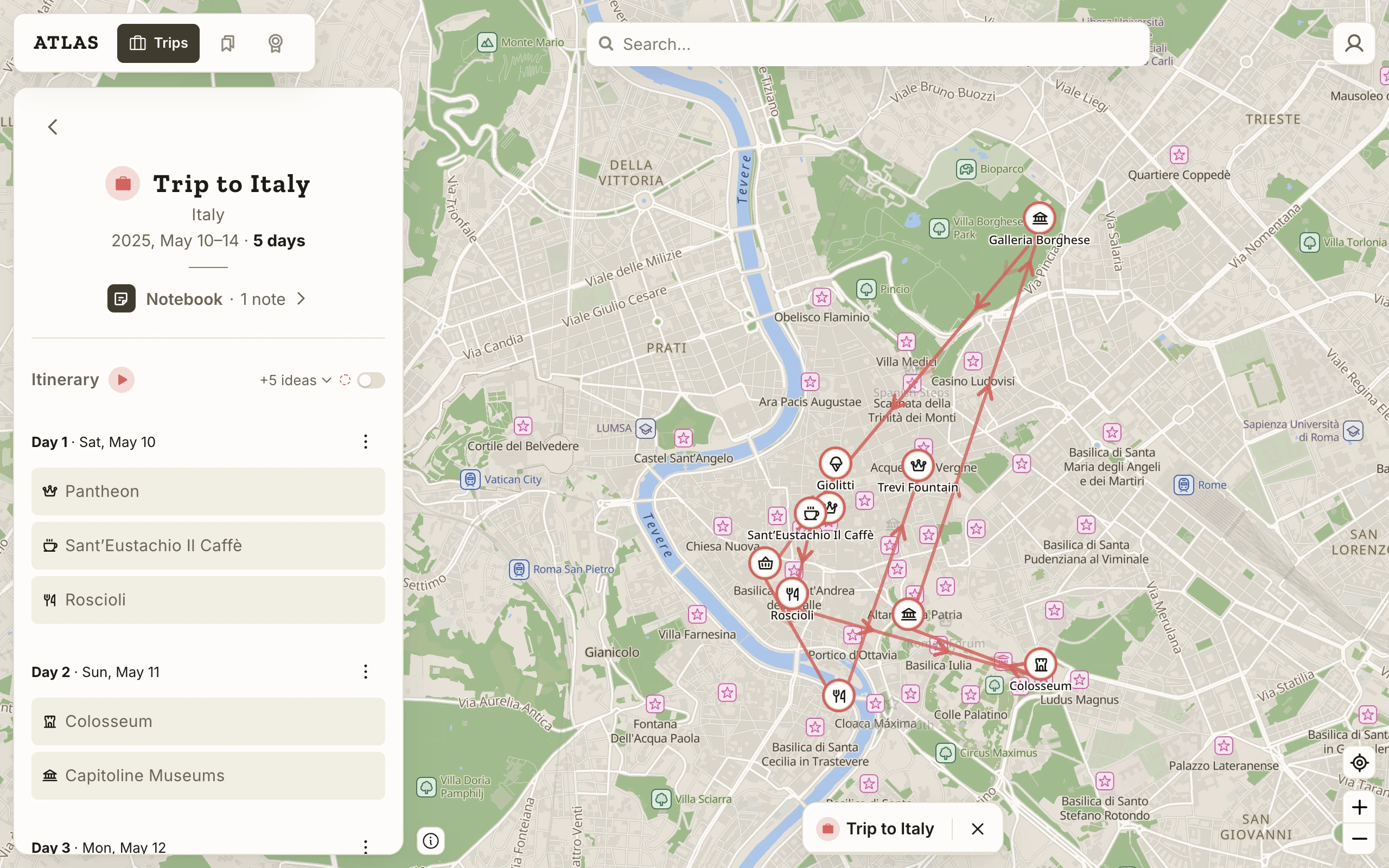
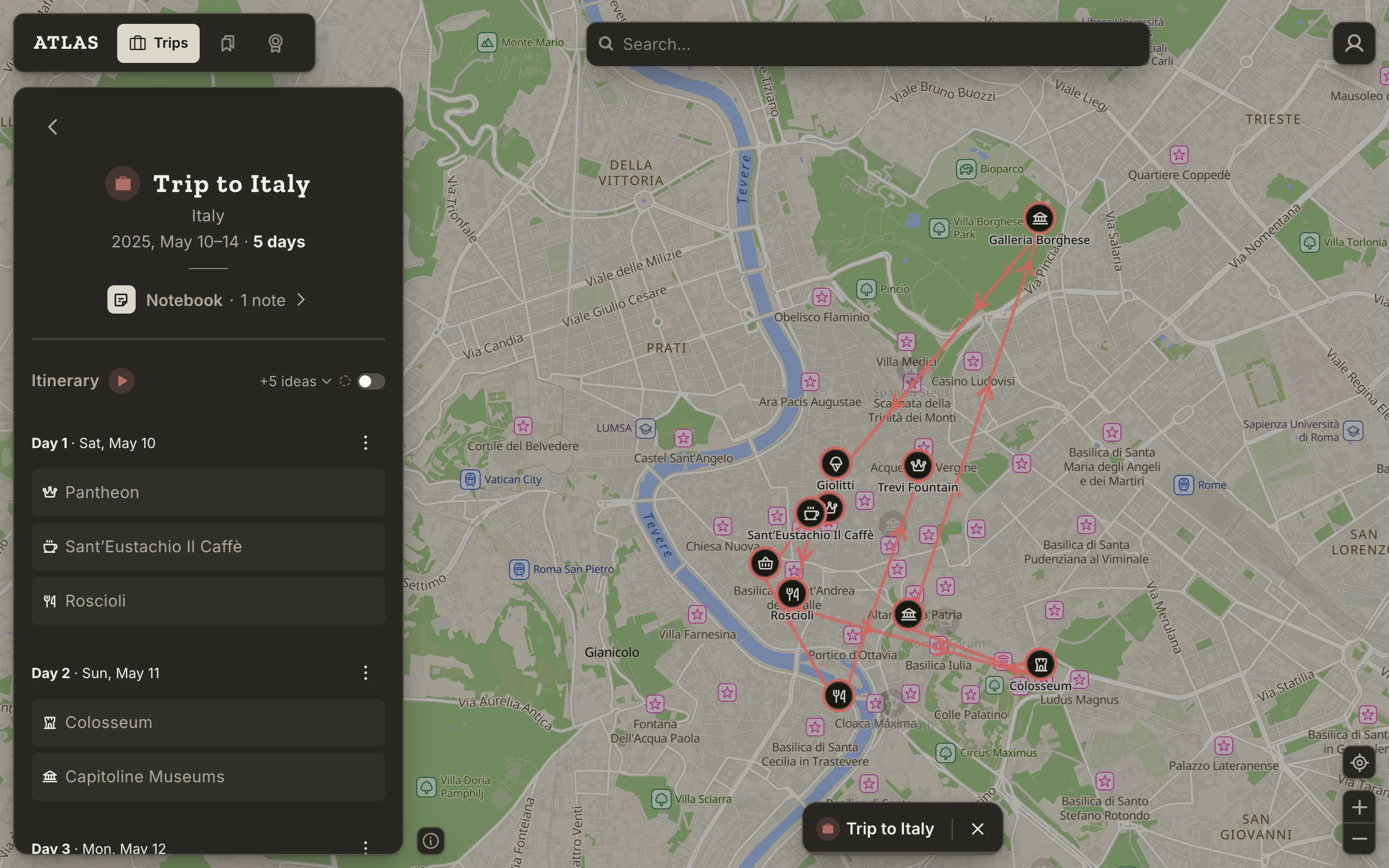
Pins that would overlap fold into one with a number; press it to zoom in until they come apart. Names appear under pins as you zoom in and there is room. Ideas nearby have a dashed outline. Everything else on the map, the small icons and the names of streets and shops, belongs to the map: press one to open it.
The bar over a pin
Press a pin and a small bar opens over it: the place's name, its status and a suitcase. It is the quick way to mark a place or put it on a trip without leaving the map.
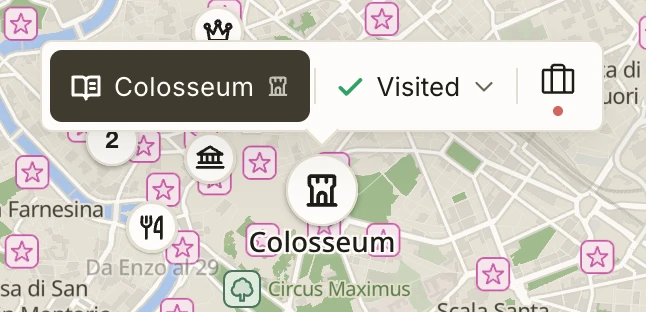
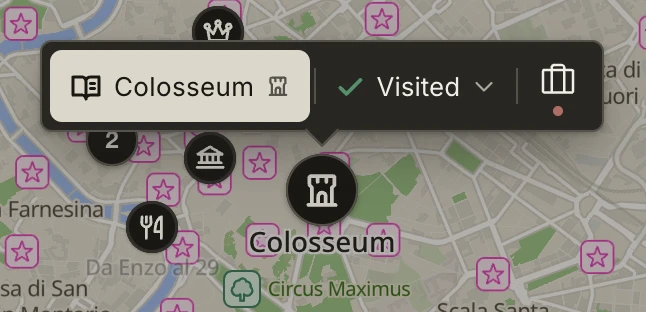
The name opens the place's page (Enter does too). The status shows where the place stands, from Not saved to Visited · Want to revisit, and opens the two marks. The suitcase is the place's trips, a dot for each in its colour; press it to open one or to add the place to another. A right-click on a pin opens the bar too, and so does picking a result in search. Press the map or Escape to close it.
On a trip's own page, the trip's stops don't open this bar; pressing one steps the trip's player to it instead.
Find nearby places
Right-click a spot on the map (touch and hold on a phone) and choose Find nearby places for what's around it: up to ten places, nearest first, with their distance. Your saved places are listed alongside the map's own. Pick one and its bar opens, so you can mark it or add it to a trip without knowing its name or hitting its exact icon.
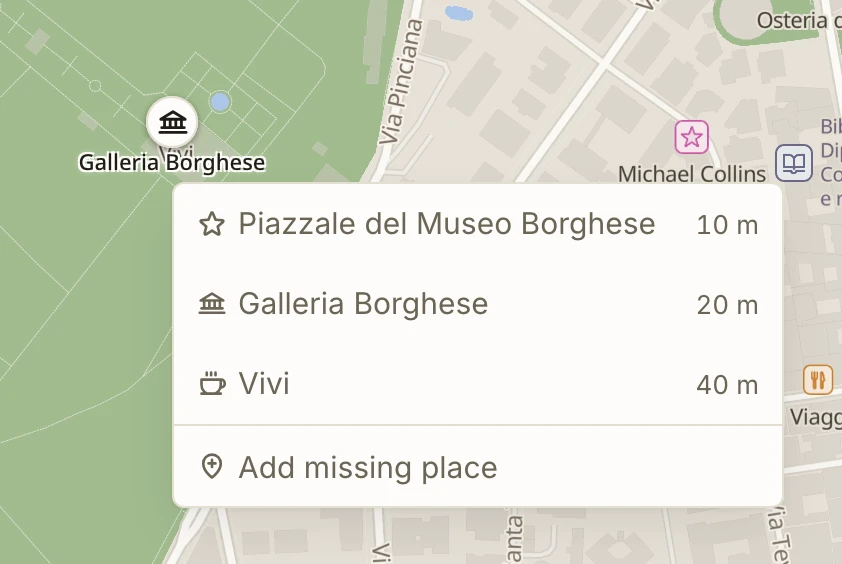
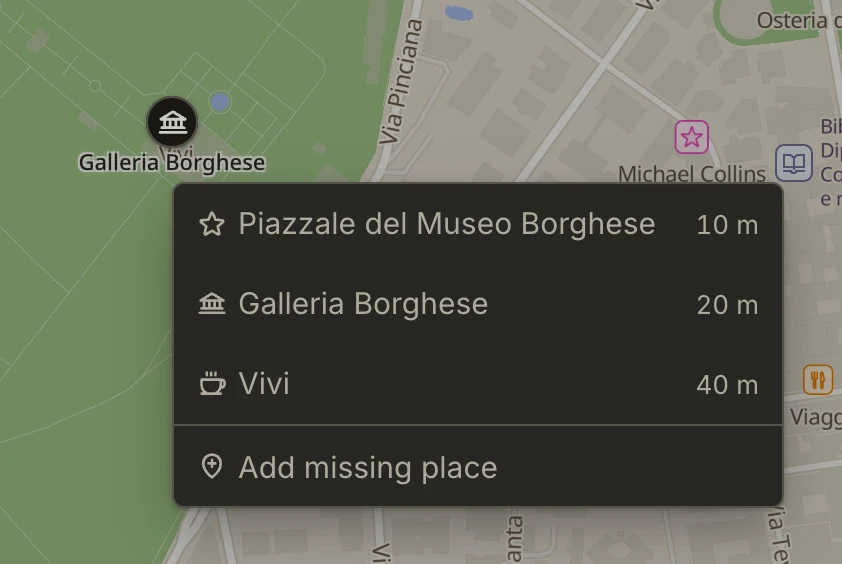
The same menu has Add missing place, for a place the map doesn't know. See Adding a place that isn't on the map.
Your location
The locate button, in the bottom right corner of the map, shows where you are among your places. The first time, the browser asks whether Atlas may know.
On a laptop, one press shows you once: a dot, a pale disc for how sure the device is, and the map moved to you. Press again to update it.
On a phone the same button follows you. One press and the map keeps you in view as you move; a second turns the map to face your direction, so what's ahead is at the top; a third stops the turning. Drag the map to look around and it stops following; press the button to come back. The needle above the button turns the map back to north, and two fingers rotate it at any time.
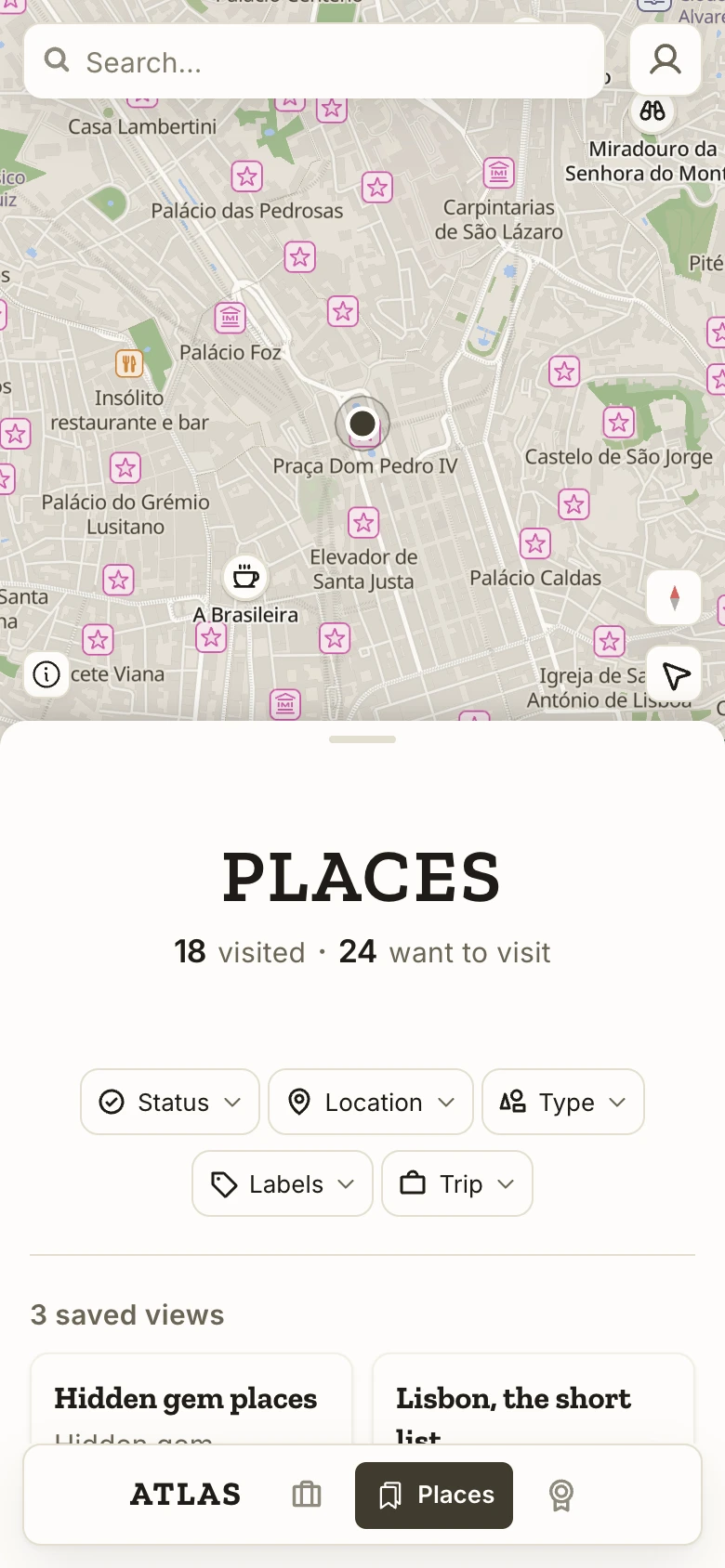
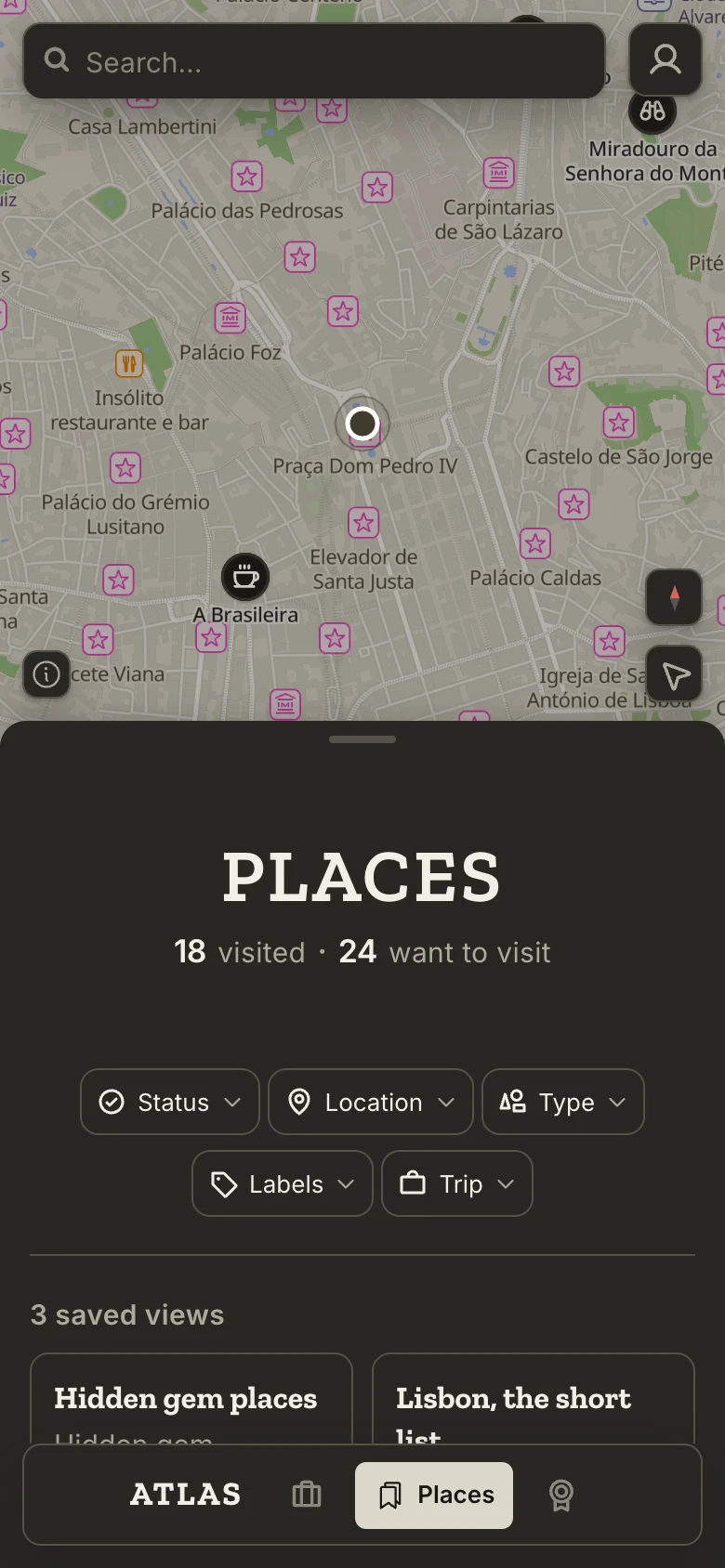
If location is blocked for Atlas in the browser, the button says so and how to allow it.
Using Atlas
On your phone
On a phone the map fills the screen and the panel is a sheet that slides up over it. Trips, Places and Passport sit in a nav at the bottom, within reach of a thumb.
The sheet has three heights. Closed leaves the map, with the open trip's name on a chip over it. Half shows the list and the map together. Full is for reading. Swipe up to raise it, pull down to lower it, and tap the bar at its top edge to step between half and full. Move the map and the sheet closes; tap a nav entry, or swipe up on the nav, to bring it back where you left it.
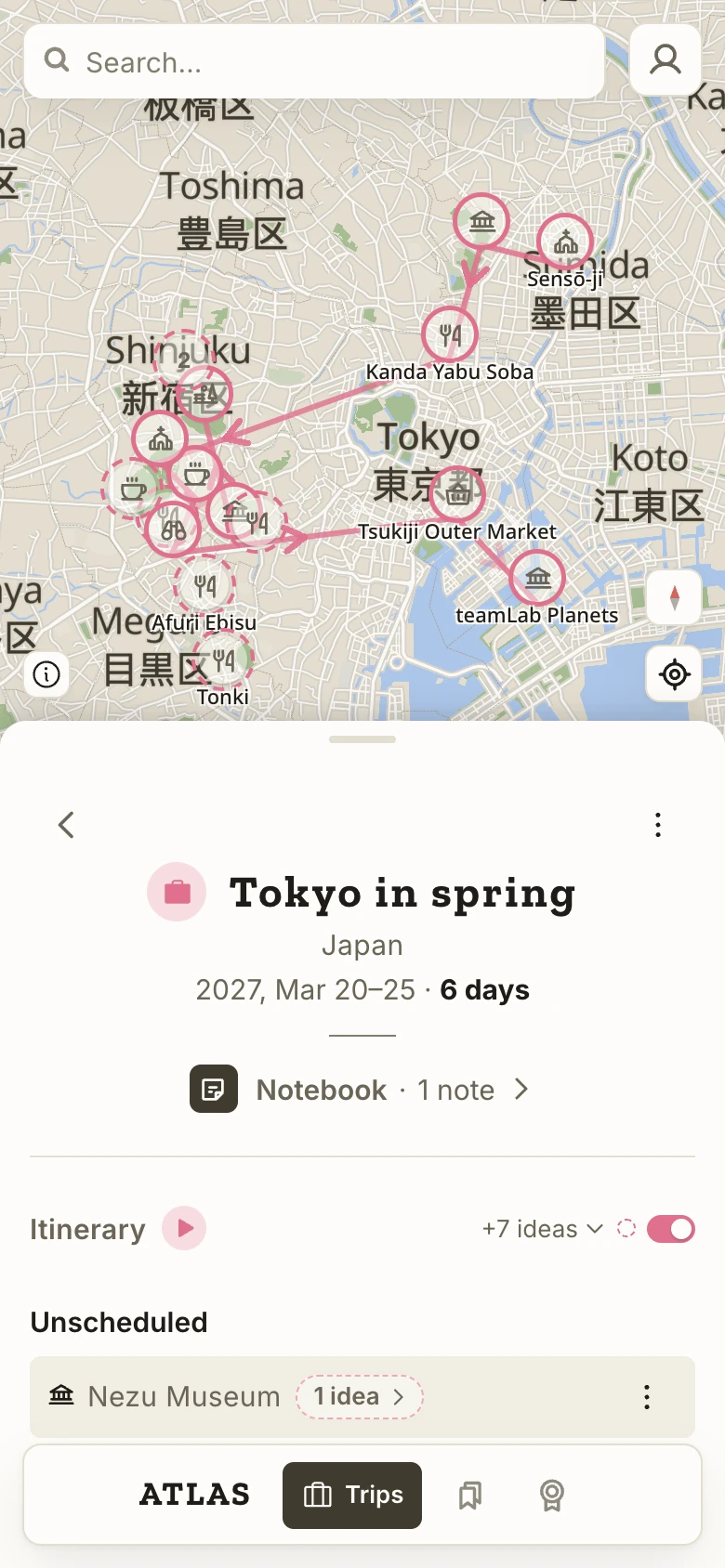
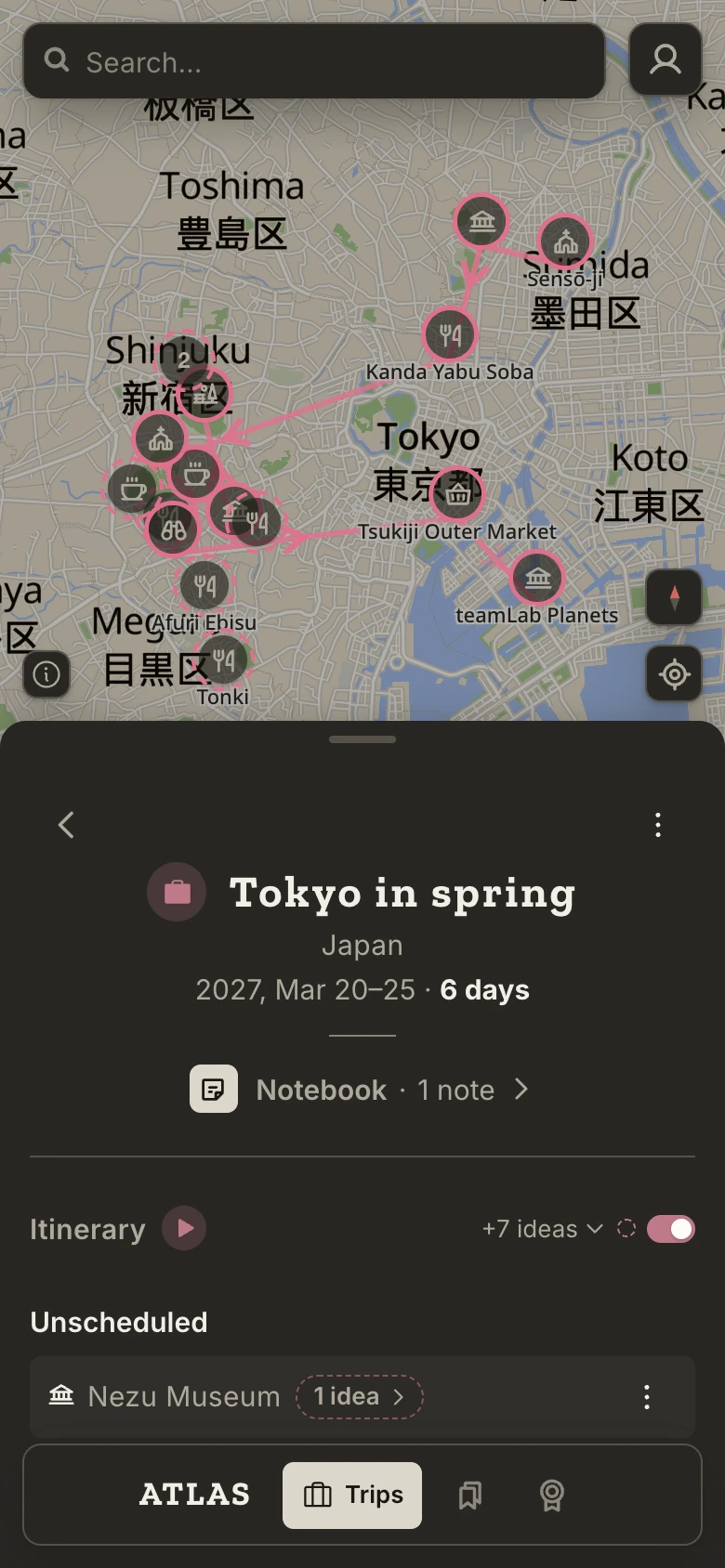
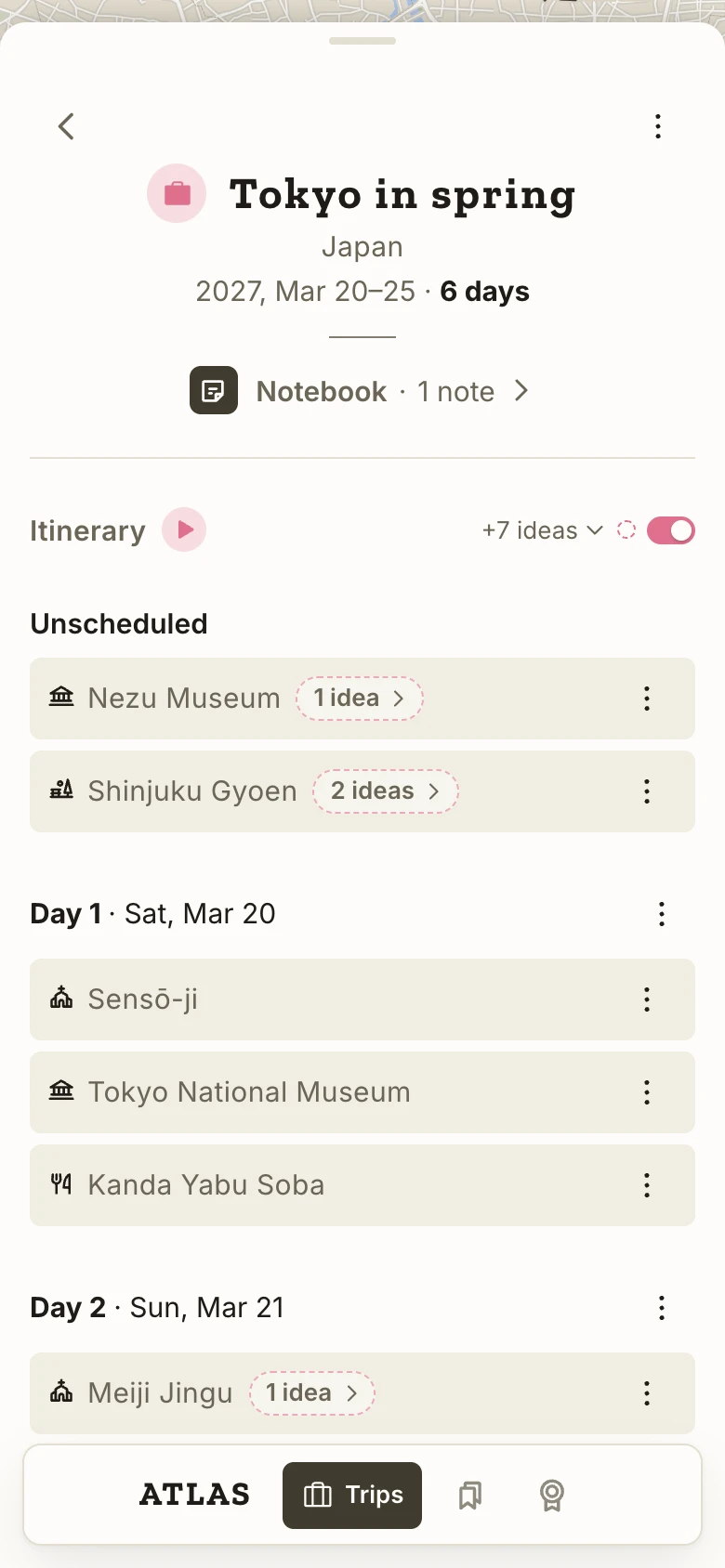
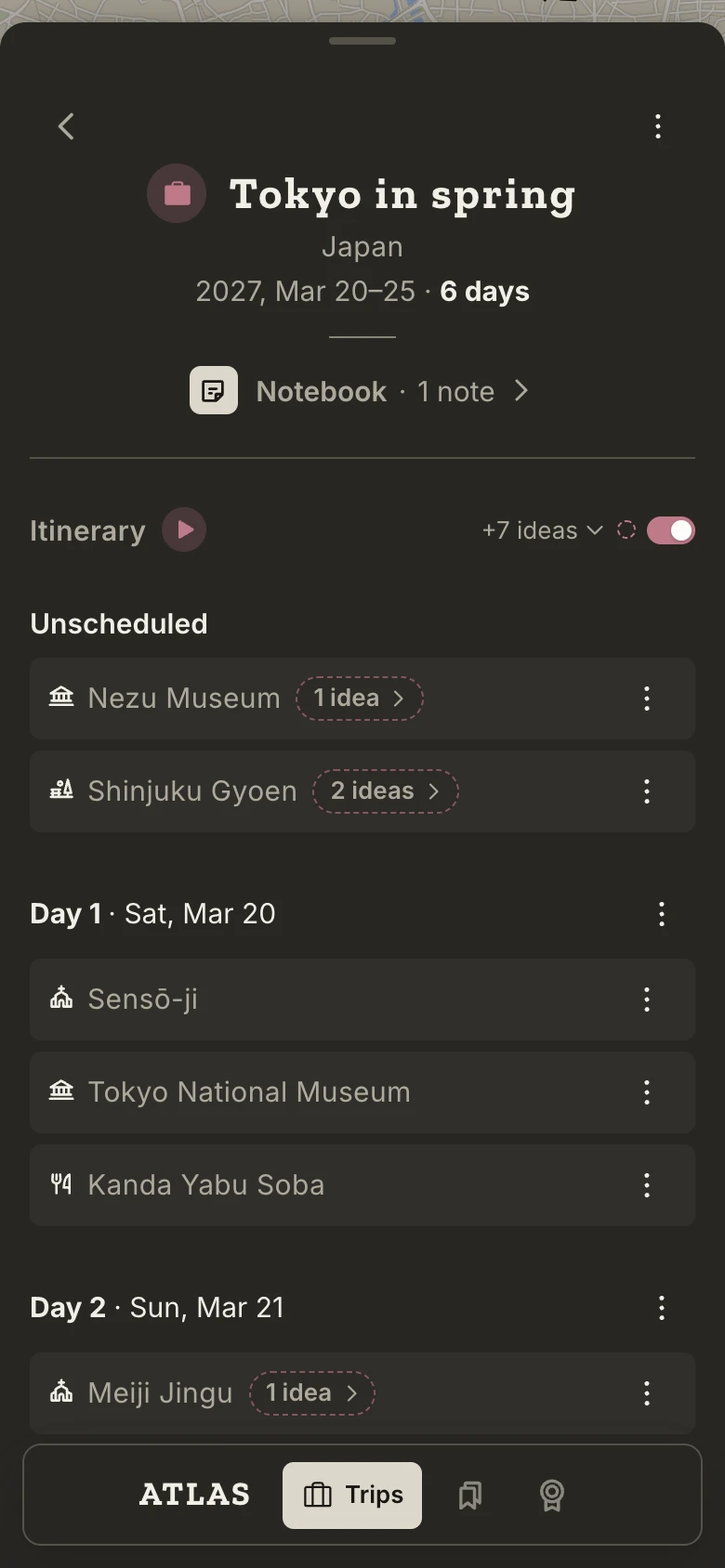
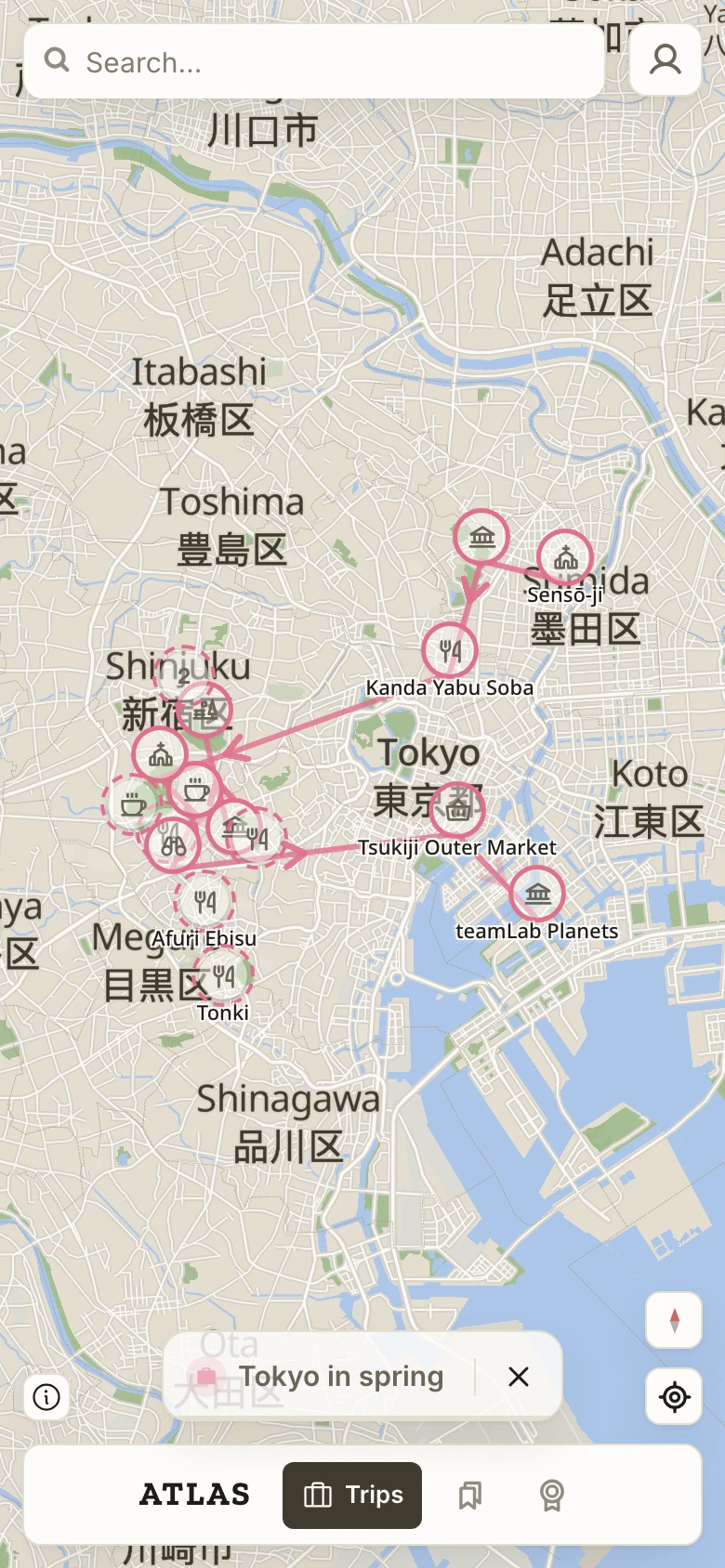
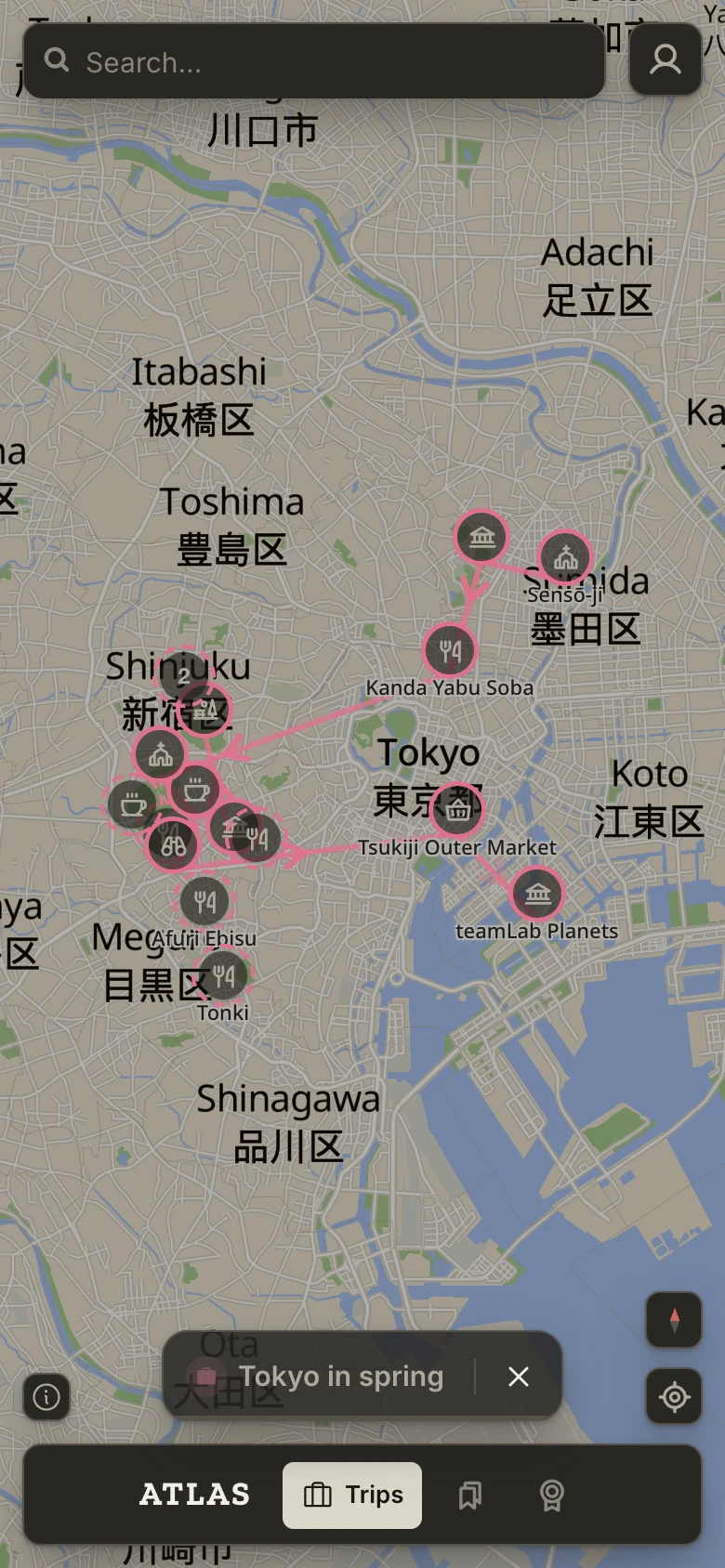
Swipe sideways on Trips, Places or Passport to turn to the next screen. Deeper in, swipe right to go back. Tap the search box and the sheet steps aside; Cancel ends the search.
Where a laptop right-clicks, a phone touches and holds: on the map for its menu, on a pin for its bar, and on a pin while a trip is open to pick the place up and carry it onto the itinerary. Every drag on the itinerary also has a menu alternative in the stop's ⋮.
Atlas on a phone is made for portrait.
Keyboard shortcuts
Press ? at any time to see this list inside Atlas. Single keys step aside while you're typing in a field.
Anywhere
| Keys | Action |
|---|---|
| ⌘K or / | Search for a place |
| Esc | Close the innermost thing: a menu, a popover, the selected pin, then the open page |
| 1, 2, 3 | Go to Trips, Places or Passport |
| Enter | Open the page of the place whose bar is over the map |
| ? | Show the shortcuts |
On a trip or a Places list
| Keys | Action |
|---|---|
| → or ↓ | Next place |
| ← or ↑ | Previous place |
| Home, End | First or last place |
| P or Space | Play the trip from Day 1 |
| ⇧→ or ⇧↓ | Expand a parent place and go into its first stop |
| ⇧← or ⇧↑ | Collapse it |
| Esc | Let go of the focused day, then leave the trip |
On the map, after a click on it: the arrow keys pan, and + and − zoom.
In a trip's Notebook, on a bullet: Tab indents, ⇧Tab brings it back a level.
In a text field: Enter saves, ⇧Enter starts a new line in a note, Esc cancels the edit.
On a Mac the list shows ⌘; elsewhere, Ctrl.
Offline
Atlas opens without a signal and shows your trips and places as they were the last time it had one, on any device where you've opened it while signed in. Offline, Atlas is for reading.
What works: your trips, places, labels, saved views and Passport as of the last load; the parts of the map you've looked at recently, in full detail, with land and borders elsewhere; search over your own things; the About of places you've opened before; the Notebook, to read.
What needs a connection: any change, which Atlas refuses with "You're offline" rather than holding it for later; searching the world; About for a place you haven't opened; signing in or out.
A small pill under the search box says when something is up: Offline · updated 2h ago while you have no connection, Couldn't update with Retry when loading failed, and New version when a newer Atlas arrived while this page was open. Nothing reloads by itself.
Before a flight: open the trip with a signal, look over each day on the map zoomed in as far as you'll want on the ground, and open the places you'd like to read about. They'll all be there.
Account and privacy
Your places, trips, labels, notes and saved views belong to your account, and only you can see them. There are no public profiles and no way to show a trip to someone else.
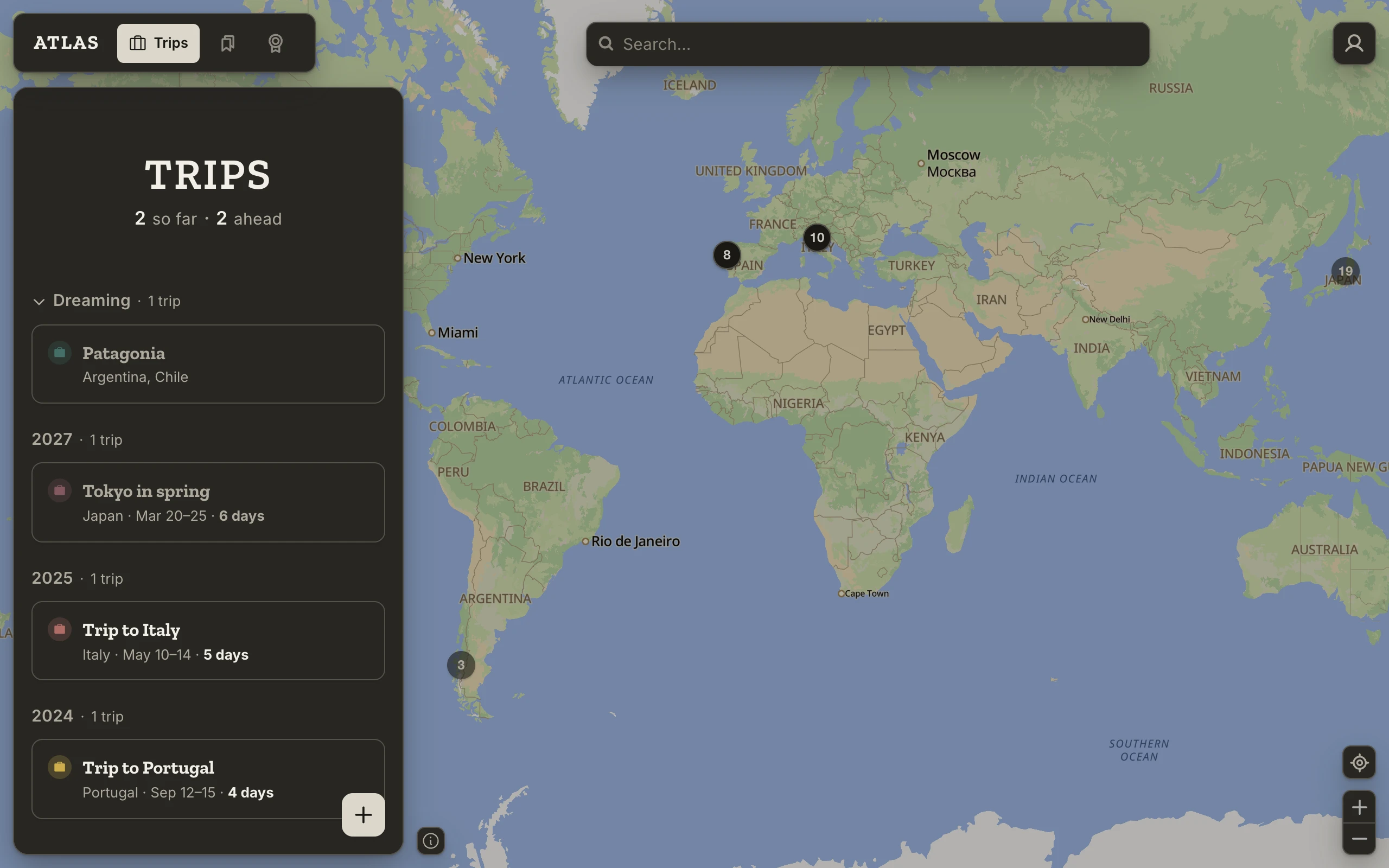
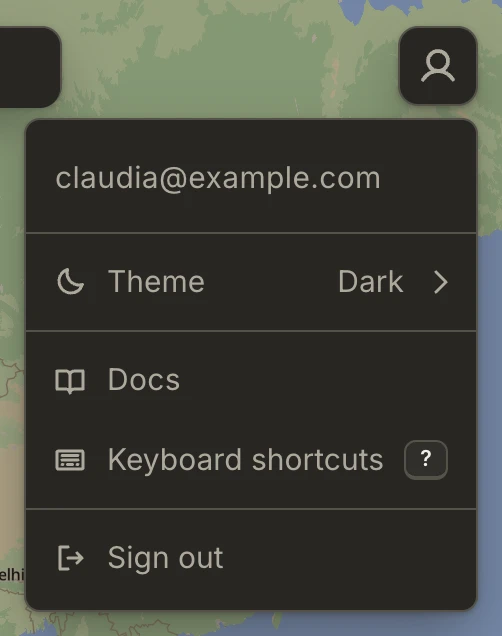
The account menu, at the top right, holds your email, Theme, Docs, Keyboard shortcuts and Sign out. Theme names the one in use and opens the choice of Light, Dark or As system, which follows your device; in the dark theme the map is the same map, darkened. Signing out clears what Atlas kept on that device: the copy of your data for offline use, the map areas and About texts kept with it, and your recent searches. Nothing is removed from your account.
Every screen, trip, place, saved view and country has its own address, so you can bookmark one, use the browser's Back, and reload without losing your place. An address names a thing, not how you were looking at it: filters picked on Places aren't part of it, which is what saved views are for.